Does Factory Reset Remove Virus From Your Smartphone
A factory reset can remove most viruses from your smartphone, but it is not a guaranteed fix for every type of malware. This process wipes your device back to its original settings, deleting apps, data, and potentially harmful software. However, some stubborn viruses may survive if they are stored in protected system areas. You should always back up your data before resetting and take extra steps to secure your phone afterward.
Your smartphone holds a lot of personal information. Photos, messages, banking details, and passwords all live on that small device. So when something goes wrong, it is natural to feel worried. One common question people ask is whether a factory reset removes a virus from their phone.
The short answer is yes, most of the time. A factory reset wipes your device clean and brings it back to the way it was when you first took it out of the box. But the full story is a bit more complicated than that. Some viruses are sneaky and can hide in places a simple reset cannot reach. In this article, we will walk you through everything you need to know about removing viruses with a factory reset. You will learn how the process works, when it fails, and what to do afterward to keep your phone safe.
Whether you have an Android phone or an iPhone, this guide covers you. We will break down each step in plain language so you feel confident. No jargon, no confusing tech speak. Just clear, helpful advice you can use right away.
Key Takeaways
- A factory reset deletes most malware: It restores your phone to its original state and removes most viruses and harmful apps.
- Some viruses can survive a reset: Certain deep-rooted malware hides in system partitions and may not be fully removed.
- Back up your data first: Always save important files, photos, and contacts before performing a reset.
- Reinstall apps carefully: Only download apps from trusted sources like the official app store after resetting.
- Strengthen security afterward: Use antivirus software, update your OS, and avoid suspicious links to prevent future infections.
- iPhones and Androids differ: The reset process and virus vulnerability vary between operating systems.
- When in doubt, seek help: If problems persist after a reset, consult a professional or contact your device manufacturer.
📑 Table of Contents
What Is a Factory Reset and How Does It Work?
A factory reset, also called a hard reset, erases all data on your phone and returns it to its original factory settings. Think of it like wiping a whiteboard clean and starting fresh. Every app, every photo, every downloaded file gets removed. Your phone goes back to the state it was in when you first unboxed it.
How Factory Reset Clears Your Device
When you initiate a factory reset, your phone deletes all user data from its storage. This includes installed applications, personal files, system settings, and cached data. The operating system itself stays intact, but it reverts to the default configuration that came with the device.
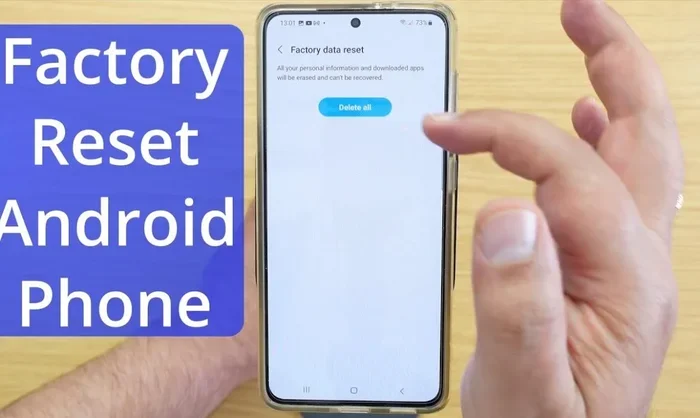
On most phones, you can find the reset option in the settings menu. For Android devices, go to Settings, then System, and look for Reset Options. On iPhones, you will find it under Settings, General, and then Transfer or Reset iPhone. The process usually takes between 10 and 30 minutes depending on how much data your phone holds.
It is important to note that a factory reset does not just hide your data. It actively removes it from the storage partition. However, the way data is deleted can vary between phone models and operating systems. Some phones use encryption, which makes data recovery much harder after a reset.
What Gets Deleted During a Reset
Here is a list of what typically gets removed during a factory reset:
- Installed applications and their data
- Personal files like photos, videos, and documents
- System settings and preferences you customized
- Cached data and temporary files
- User accounts logged into the device
- Saved Wi-Fi passwords and Bluetooth pairings
- Text messages and call logs
Because everything gets wiped, a factory reset is one of the most thorough ways to clean your phone. This is why it works so well for removing many types of malware and viruses. But not all threats are created equal, and some are more resilient than others.
Can a Factory Reset Actually Remove a Virus?
This is the big question, and the answer depends on the type of virus your phone has. Most common phone viruses and malware live in the user data partition. When you factory reset, this partition gets wiped completely. So the virus goes away with it. Problem solved, right? Mostly yes.
But here is where things get tricky. Some advanced malware can embed itself in the system partition. This is a protected area of your phone’s storage that a factory reset typically does not touch. If a virus lives there, it can survive the reset and reinfect your phone once you start using it again.
When Factory Reset Works Well
A factory reset works very well for removing most common threats. These include:
- Adware: Apps that show unwanted advertisements
- Spyware: Software that secretly tracks your activity
- Trojans disguised as apps: Harmful apps that pretend to be something safe
- Browser hijackers: Malware that changes your browser settings
- Rogue apps: Apps you did not intentionally download
For these types of threats, a factory reset is usually the best and most effective solution. It removes the infected apps and their data entirely, giving you a clean slate.
When It Might Not Be Enough
Some viruses are tougher than others. These include rootkits, which burrow deep into your phone’s operating system. They can hide from factory resets and even from antivirus scans. Another example is firmware-level malware, which infects the software that controls your phone’s hardware at the most basic level.
These types of infections are rare, but they do happen. If you have a very advanced or persistent virus, a factory reset alone may not fix the problem. In such cases, you may need to flash your phone’s firmware or seek professional help. This is why it is important to identify the type of virus you are dealing with before deciding on a solution.
Also, keep in mind that if you back up your data before resetting and the backup contains infected files, you could accidentally reintroduce the virus after the reset. Always scan your backups for malware before restoring them.
Signs Your Phone Might Be Infected
How do you know if your phone even has a virus? Many people are not sure until the problem becomes serious. Here are some common signs that your phone might be infected with malware or a virus.
Common Symptoms of a Phone Virus
- Sluggish performance: Your phone is suddenly slow, even when you are not running many apps
- Battery drains quickly: Malware often runs background processes that consume power
- Pop-ups appear frequently: Unexpected ads or warnings showing up on your screen
- Apps you did not download: New apps appear that you do not remember installing
- Data usage spikes: Your data plan gets used up faster than normal
- Phone overheats: Your device gets unusually hot even during light use
- Strange text messages: You send messages you do not remember writing
If you notice any of these signs, do not panic. These symptoms can also be caused by other issues like a full storage or an outdated operating system. But they are strong indicators that something is wrong and worth investigating further.
How to Confirm Infection
You can take a few steps to check if your phone is truly infected. First, open your phone’s settings and look at your installed apps. Sort them by date and look for anything you do not recognize. On Android, you can also run a malware scan using a trusted antivirus app. iPhones are more closed systems, so they are less prone to traditional viruses, but they can still get infected through phishing or malicious profiles.
Another useful check is to look at your phone’s data usage in the settings. If an app is using an unusually high amount of data in the background, it could be malware sending your information to a remote server.
Step-by-Step Guide to Factory Resetting Your Phone
If you have decided that a factory reset is the right move, here is how to do it properly. Follow these steps carefully to make sure the reset works and you do not lose anything you need.
How to Factory Reset Android
- Back up your data: Use Google Drive, a USB cable, or a cloud service to save your photos, contacts, and important files.
- Remove your Google account: This prevents Factory Reset Protection from locking your phone after the reset.
- Go to Settings: Scroll down to System or General Management, depending on your phone model.
- Tap Reset Options: Look for “Erase All Data” or “Factory Reset.”
- Confirm the reset: Your phone will restart and the process will begin. This can take 10 to 30 minutes.
- Set up your phone fresh: Go through the initial setup process as if it were a new device.
After the reset, do not restore from a backup right away if you suspect your backup was infected. Instead, set up your phone manually and only add trusted apps and files.
How to Factory Reset iPhone
- Back up to iCloud or Finder: Make sure your backup is complete and recent.
- Go to Settings: Tap General and then Transfer or Reset iPhone.
- Tap Erase All Content and Settings: You may need to enter your passcode and Apple ID password.
- Confirm the erase: Your iPhone will restart and begin the reset process.
- Set up as new: After the reset, choose to set up as a new device rather than restoring from a backup immediately.
iPhones are generally more secure than Android phones, and they are less likely to get traditional viruses. But they can still be affected by phishing attacks, malicious profiles, and other security threats. If you ever wonder does the iPhone store emails and other sensitive data, the answer is yes, which is exactly why a reset can help clear those threats.
What to Do After a Factory Reset
A factory reset is not the end of the process. What you do afterward matters just as much as the reset itself. Taking the right steps ensures your phone stays clean and secure going forward.
Reinstalling Apps Safely
After your reset, resist the urge to download everything at once. Only install apps from official sources like the Google Play Store or Apple App Store. Before installing any app, check its reviews, developer information, and permissions. If an app asks for permissions it does not need, that is a red flag.
It is also a good idea to update your operating system right away. Software updates often include security patches that fix known vulnerabilities. Keeping your phone updated is one of the simplest ways to protect it from future infections.
Strengthening Phone Security
Once your phone is clean, take steps to keep it that way. Here are some practical tips:
- Install a reputable antivirus app on Android devices
- Enable automatic updates for your operating system and apps
- Use strong, unique passwords for your accounts
- Turn on two-factor authentication wherever possible
- Avoid clicking on suspicious links in text messages or emails
- Do not download apps from third-party websites
- Regularly review your installed apps and remove anything you no longer use
You might also want to check your phone’s security settings and make sure features like Find My Device or Find My iPhone are turned on. These tools help you locate, lock, or wipe your phone remotely if it gets lost or stolen.
If you are concerned about your online privacy after a reset, consider whether your phone carrier or mobile service adds extra layers of protection. For example, you might wonder does Google Fi have built-in VPN to help secure your data. Google Fi does include a built-in VPN that encrypts your internet traffic, adding an extra layer of security to your mobile browsing.
Preventing Future Virus Infections
The best way to deal with a virus is to prevent one from ever getting on your phone. A factory reset can fix a current problem, but prevention keeps future problems away. Here are some habits that will help you stay safe.
Best Practices for Phone Security
- Keep your phone updated: Software updates patch security holes that viruses can exploit.
- Be careful with links: Do not click on links from unknown senders or suspicious messages.
- Use strong passwords: Avoid simple passwords like “123456” or your birthday.
- Download apps wisely: Stick to official app stores and read reviews before installing.
- Limit app permissions: Only give apps access to features they genuinely need.
- Use a VPN on public Wi-Fi: Public networks are a common hunting ground for hackers.
- Back up regularly: This way, if something goes wrong, you do not lose your important data.
These habits take little effort but make a huge difference. Think of them as daily hygiene for your phone, just like washing your hands keeps you healthy.
When to Seek Professional Help
Sometimes, a factory reset is not enough. If you have reset your phone and the same problems keep coming back, it is time to call in the experts. A professional technician can check for deep-rooted malware that a regular reset cannot reach. They can also help you identify how the virus got in and recommend stronger protection measures.
You should also seek help if your phone shows signs of persistent infection after a reset. These signs include continued sluggish performance, unexplained data usage, or apps reinstalling themselves. These are red flags that something more serious is going on.
Remember, your phone is a valuable device that holds sensitive personal information. Taking it seriously and acting quickly when something seems wrong is always the right move.
Final Thoughts
So, does a factory reset remove a virus? In most cases, yes. A factory reset is one of the most effective ways to clear malware and restore your phone to a clean state. It wipes your device thoroughly and removes the vast majority of common threats. However, it is not a magic bullet. Some advanced viruses can survive a reset, and you need to be careful about restoring backups that might be infected.
The key is to act quickly if you suspect your phone is infected. Do not wait and hope the problem goes away. The longer malware stays on your device, the more damage it can do. Follow the steps in this guide, take preventive measures, and your phone will stay safe and running smoothly.
Whether you are dealing with an Android or an iPhone, a factory reset gives you a fresh start. Just make sure you back up your important data first, set up your phone carefully afterward, and build good security habits for the future. Your smartphone works hard for you every day. Taking the time to protect it is more than worth the effort.
Frequently Asked Questions
Will a factory reset delete everything on my phone?
Yes, a factory reset removes all personal data, apps, photos, and settings from your device. This is why it is so important to back up anything you want to keep before starting the reset process. Once the reset is complete, your phone will be as clean as the day you bought it.
Can a virus survive a factory reset on an iPhone?
iPhones are more secure than most Android phones, but they are not completely immune to viruses. Most iPhone viruses live in the user data partition, which a reset does delete. However, very rare firmware-level threats could potentially survive. If you suspect your iPhone is infected, a reset combined with a full iOS update is your best course of action.
How long does a factory reset take?
A factory reset typically takes between 10 and 30 minutes. The time depends on how much data is on your phone and the model of your device. After the reset finishes, you will need to go through the initial setup process again, which adds a few more minutes.
Should I install antivirus software after a factory reset?
Yes, especially if you have an Android phone. Antivirus software adds an extra layer of protection that can catch threats before they cause damage. iPhones benefit less from antivirus apps because of Apple’s closed ecosystem, but keeping your software updated is still essential for security.
Can I get a virus back after a factory reset?
Yes, if you restore from an infected backup or download malicious apps after the reset. This is why it is important to be cautious when setting up your phone again. Only restore clean data, download apps from official stores, and follow good security practices to avoid reinfection.
What is the difference between a soft reset and a factory reset?
A soft reset simply restarts your phone and does not delete any data. A factory reset, on the other hand, erases everything and restores the phone to its original settings. If you are trying to remove a virus, you need a factory reset, not a soft reset. A soft reset will not remove any malware that is already installed on your device.