How Do I Connect My iPhone To Type C A Simple Guide
Connecting your iPhone to Type C is easier than you think. Whether you have an older iPhone with Lightning or a newer model with USB-C, this guide walks you through every method. You will learn about adapters, cables, and the best ways to charge, transfer data, and connect accessories using a USB-C connection.
So you want to know how do I connect my iPhone to Type C. Maybe you just bought a new laptop, a car charger, or a docking station with a USB-C port. Or perhaps you upgraded to an iPhone 15 and are figuring out the new setup. Either way, you are in the right place.
Connecting your iPhone to a USB-C port might seem tricky at first. But once you understand your options, it is actually pretty simple. This guide covers everything you need to know. From choosing the right cable to setting up fast charging and transferring data, we have you covered. Let us get started.
Key Takeaways
- iPhone 15 and newer models use USB-C natively, making connection simple with any USB-C cable.
- Older iPhones with Lightning need a Lightning to USB-C cable or adapter to work with Type C ports.
- USB-C adapters and hubs expand your connectivity options for chargers, monitors, and peripherals.
- Fast charging is possible with the right USB-C charger and cable combination.
- Data transfer speeds improve significantly when using USB-C compared to older connections.
- Cable compatibility matters, so always check your iPhone model before buying accessories.
- Apple’s official accessories ensure the best performance and safety for your device.
📑 Table of Contents
- Understanding iPhone and USB-C Connectivity
- How Do I Connect My iPhone To Type C: Step-by-Step Methods
- Choosing the Right Cable and Adapter
- Charging Your iPhone with USB-C
- Transferring Data with USB-C
- Common Mistakes to Avoid
- Expert Tips for Better USB-C iPhone Connectivity
- Frequently Asked Questions
- Conclusion
Understanding iPhone and USB-C Connectivity
Before you grab any cable, it helps to know what kind of iPhone you have. Apple changed its connection type a few years ago, and this affects how you plug in your device.
The Lightning Era
For many years, every iPhone used a Lightning port. This was the small, flat connector on the bottom of your phone. Models from the iPhone 5 all the way through the iPhone 14 used Lightning. If you still have one of these phones, you need a special cable to connect to USB-C.
The USB-C Era
Apple switched to USB-C starting with the iPhone 15 lineup. USB-C is a larger, oval-shaped connector that is now standard across many devices. Laptops, tablets, Android phones, and even gaming consoles use USB-C today. This change means one cable can do many jobs. You can charge, transfer data, and connect accessories all with the same port.
Knowing which era your iPhone belongs to is the first step. It tells you what kind of cable and adapter you need. Without this knowledge, you might buy the wrong accessory and waste your money.
How Do I Connect My iPhone To Type C: Step-by-Step Methods
Now let us get into the practical part. Here are the different ways to connect your iPhone to a USB-C port. Each method works for different situations and iPhone models.
Method 1: Direct USB-C Connection (iPhone 15 and Newer)
If you have an iPhone 15, iPhone 15 Plus, iPhone 15 Pro, or iPhone 15 Pro Max, you can plug a USB-C cable directly into your phone. This is the easiest method. You just need a standard USB-C cable.
Here is what to do:
- Take a USB-C cable.
- Plug one end into your iPhone.
- Plug the other end into your USB-C charger, laptop, or hub.
- Your iPhone should recognize the connection right away.
That is it. No adapters needed. No extra steps. This is one of the biggest benefits of the switch to USB-C. You can now share cables with your friends, use the same charger as your laptop, and connect to more accessories without hassle.
Method 2: Lightning to USB-C Cable (Older iPhones)
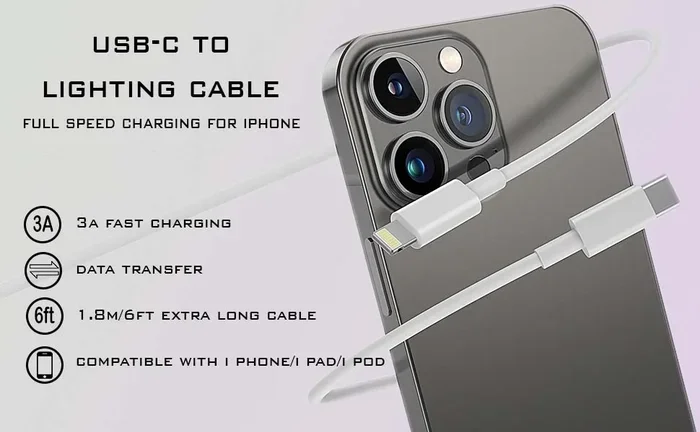
If you have an iPhone 14 or older, you cannot plug directly into a USB-C port. Instead, you need a Lightning to USB-C cable. Apple makes one officially, and many third-party brands offer compatible options too.
This cable has a Lightning connector on one end and a USB-C connector on the other. You plug the Lightning end into your iPhone and the USB-C end into your charger or laptop.
Quick Tips for using a Lightning to USB-C cable:
- Buy from reputable brands to avoid damage to your iPhone.
- Look for MFi certification, which means Apple has approved the accessory.
- Avoid very cheap cables, as they may not support fast charging or data transfer.
- Keep your cable away from extreme heat to extend its lifespan.
Method 3: Using a USB-C Adapter
Sometimes you need more than just a cable. Maybe your laptop has only USB-C ports and you want to connect your Lightning iPhone while also charging it. Or perhaps you need to connect your phone to a monitor or external hard drive.
A USB-C adapter solves this problem. You plug the adapter into your USB-C port, and it gives you a Lightning port or additional USB ports to connect your iPhone and other devices.
Common types of adapters include:
- USB-C to Lightning adapter — lets you connect older iPhones to USB-C ports.
- USB-C hub with Lightning port — adds multiple connection options in one device.
- USB-C docking station — provides charging, video output, and data transfer all at once.
Adapters are especially useful if you work at a desk and want a clean setup. Instead of carrying multiple cables, you can dock your iPhone and have it charge while syncing files or displaying your screen on a monitor.
Method 4: Wireless Connection Options
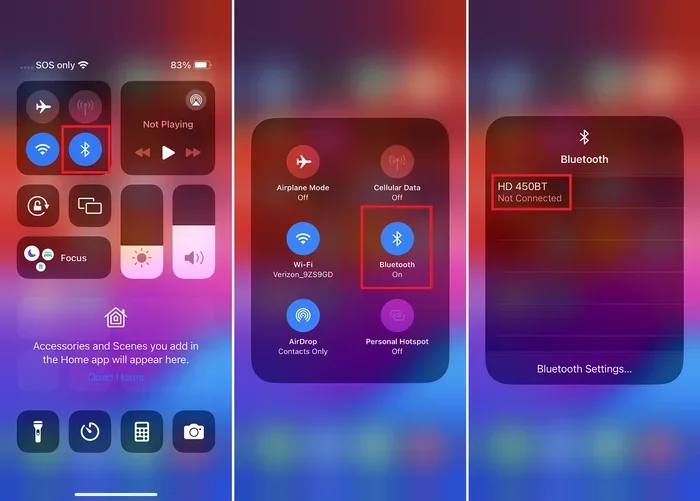
Not every connection needs a cable. You can also connect your iPhone to Type C devices wirelessly. AirDrop lets you share files between iPhones and MacBooks instantly. Bluetooth works for audio devices and some peripherals. And wireless charging pads with USB-C inputs let you power up your phone without plugging anything in.
Wireless options are great for everyday use. But for large file transfers or fast charging, a wired USB-C connection is still faster and more reliable.
Choosing the Right Cable and Adapter
Not all USB-C cables are the same. Choosing the wrong one can lead to slow charging, poor data transfer, or even damage to your device. Here is what you should look for.
What to Look for in a USB-C Cable
When shopping for a USB-C cable for your iPhone, pay attention to these factors:
- Data transfer speed: Look for USB 3.0 or USB 3.1 cables if you need fast file transfers. USB 2.0 cables work but are slower.
- Power delivery: A USB-C cable that supports USB Power Delivery (PD) can charge your iPhone faster.
- Cable length: Pick a length that suits your needs. Shorter cables are great for desk use, while longer ones give you more flexibility.
- Build quality: Braided cables tend to last longer than rubber ones. Look for reinforced connectors too.
Apple vs Third-Party Accessories
Apple makes high-quality USB-C cables and adapters, but they come at a premium price. Many third-party brands offer excellent alternatives at lower costs. The key is to choose certified accessories.
Here is a quick comparison to help you decide:
| Feature | Apple Official | Third-Party (Certified) |
|---|---|---|
| Price | Higher | Lower to moderate |
| Compatibility | Guaranteed | Usually excellent |
| Durability | Very high | Varies by brand |
| Fast Charging | Yes | Yes (if certified) |
| Warranty | Apple warranty | Brand-specific |
Both options work well. The main difference is price and peace of mind. If you want to be 100% sure everything works perfectly, go with Apple. If you want to save money without sacrificing quality, choose a certified third-party option.
Charging Your iPhone with USB-C
One of the biggest reasons people want to connect their iPhone to Type C is for charging. USB-C charging is faster and more versatile than the old Lightning charging method.
Fast Charging with USB-C
iPhone 15 models and iPhone 12 and newer support fast charging when you use a USB-C charger. With a 20W or higher USB-C power adapter, you can charge your iPhone up to 50% in about 30 minutes.
To get the best fast charging results:
- Use a USB-C cable that supports Power Delivery.
- Pair it with a USB-C charger rated at 20W or higher.
- Make sure your iPhone model supports fast charging.
- Avoid using your phone while it charges for the fastest speeds.
Fast charging is a game changer. You can plug in your phone while getting ready in the morning and have a full battery in no time. Just make sure your charger and cable are compatible.
Charging Speed Comparison
Not all USB-C chargers are created equal. A 5W charger will charge your phone slowly. A 20W charger is much faster. And a 30W or higher charger can charge even faster, though your iPhone will only draw as much power as it supports.
- 5W USB-C charger: Slow charging, best for overnight use.
- 20W USB-C charger: Fast charging, charges 50% in about 30 minutes.
- 30W+ USB-C charger: Fastest available, but your iPhone will cap its intake.
Expert Insight: Many people think buying a higher-wattage charger will damage their phone. This is not true. Your iPhone regulates the power it receives. A 30W charger will simply deliver power at the rate your phone can handle safely.
Transferring Data with USB-C
Connecting your iPhone to a computer through USB-C opens up fast data transfer options. You can move photos, videos, documents, and backups quickly and reliably.
Using Finder (Mac) or File Explorer (Windows)
On macOS Catalina and later, you can use Finder to manage your iPhone. On Windows, File Explorer works. Just plug in your iPhone with a USB-C cable, and your computer should recognize it.
From there, you can:
- Transfer photos and videos to your computer.
- Create backups of your iPhone.
- Sync music and other media.
- Manage files on your device.
USB-C data transfer is significantly faster than the old Lightning connection. If you regularly move large files like 4K videos or lots of photos, you will notice the difference immediately.
Using iCloud and Cloud Services
Not every file transfer needs a cable. iCloud, Google Drive, and Dropbox all let you sync files wirelessly. But for large batches of files or when you do not have Wi-Fi access, a USB-C wired connection is the way to go.
Common Mistakes to Avoid
Even though connecting your iPhone to Type C is straightforward, some common mistakes can cause problems. Here is what to watch out for.
Using Uncertified Cables
Cheap, uncertified cables might seem like a good deal. But they can cause slow charging, data transfer errors, or even damage your iPhone port. Always look for MFi certification or buy from trusted brands.
Forcing the Connector
USB-C connectors are reversible, which means they fit either way. But if a cable does not slide in easily, do not force it. Check for debris in the port or make sure you are using the right cable for your iPhone model.
Ignoring Firmware Updates
Sometimes connection issues come from outdated software. Apple releases updates that improve USB-C compatibility and fix bugs. Keep your iPhone updated to the latest iOS version for the best experience.
Using the Wrong Adapter
Not all adapters work the same way. Some only support charging, while others support data transfer too. Check the specs before you buy, especially if you need to transfer files or connect to external displays.
Expert Tips for Better USB-C iPhone Connectivity
Here are some extra tips from people who know their way around iPhone accessories and connectivity.
Tip 1: Invest in a good USB-C hub. A quality hub gives you multiple ports for charging, data transfer, and connecting external displays. It turns your laptop into a docking station for your iPhone.
Tip 2: Label your cables. If you have multiple USB-C cables at home or in the office, label them. It saves time and prevents confusion about which cable goes where.
Tip 3: Clean your ports regularly. Dust and lint can build up in your iPhone’s USB-C port over time. Use a soft brush or compressed air to keep it clean for a reliable connection.
Tip 4: Keep a backup cable at work. Having a USB-C cable at your desk means you never have to worry about a dead battery during the workday.
Tip 5: Check your iPhone model before buying. Apple has several models with different connection types. A quick check of your model number saves you from buying the wrong accessory.
Frequently Asked Questions
Can I use any USB-C cable with my iPhone?
For iPhone 15 and newer, yes. Any standard USB-C cable works for charging and data transfer. For older iPhones with Lightning, you need a Lightning to USB-C cable specifically. Always check compatibility before purchasing.
Does USB-C charging damage my iPhone battery?
No. USB-C charging is safe and actually offers better power management. Your iPhone controls how much power it receives, so using a USB-C charger will not harm your battery. In fact, fast USB-C charging can reduce the time your phone spends plugged in, which may help battery health over time.
Why is my USB-C connection not working?
Several things can cause this. Try a different cable, clean the port, restart your iPhone, or update your iOS. If the problem persists, the adapter or charger might be faulty. Always use certified accessories to avoid connectivity issues.
Can I connect my iPhone to a USB-C monitor?
Yes, especially with iPhone 15 models that support video output through USB-C. You may need a USB-C to HDMI adapter or a USB-C hub with video output. Check your iPhone’s specifications to confirm video output support.
Is USB-C better than Lightning for iPhones?
USB-C offers faster data transfer, faster charging, and wider compatibility across devices. The universal connector means you can use one cable for your phone, laptop, tablet, and more. Most users find the switch to USB-C a significant improvement over Lightning.
How do I know if my USB-C cable supports fast charging?
Look for cables that mention USB Power Delivery (PD) support on the packaging. A 20W or higher power rating is ideal for fast charging. Certified cables from Apple or reputable brands will clearly state their charging capabilities on the product description.
Conclusion
So there you have it. Now you know exactly how do I connect my iPhone to Type C. Whether you have the latest iPhone 15 or an older model with Lightning, there is a simple way to get connected. You can use a direct USB-C cable, a Lightning to USB-C cable, an adapter, or even go wireless when a cable is not convenient.
The key is choosing the right accessories for your iPhone model and your needs. Invest in quality cables and adapters, and you will enjoy fast charging, quick data transfers, and seamless connectivity with all your USB-C devices.
Take a few minutes today to check your setup. Make sure you have the right cable in your bag, a good charger at your desk, and an adapter if you need one. With the right tools, connecting your iPhone to Type C becomes second nature. You will wonder how you ever managed without it.
Start exploring the world of USB-C connectivity. Your iPhone is ready. You just need the right cable.