Can I Use Word On Ipad A Complete Step By Step Guide
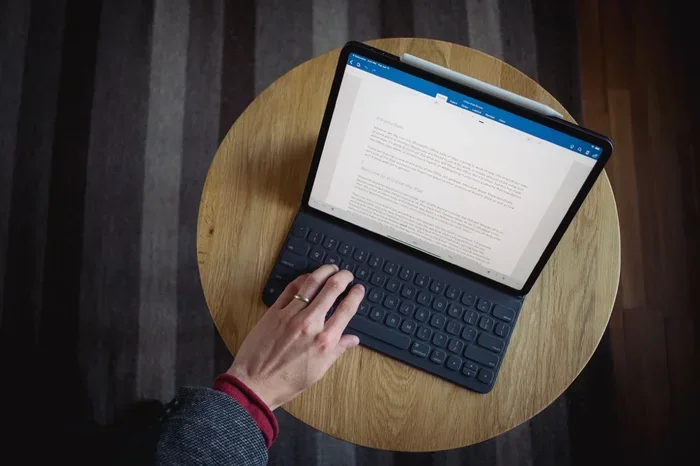
Yes, you can absolutely use Word on your iPad. Microsoft offers a free Word app for iPad that lets you create, edit, and share documents on the go. This guide walks you through every step, from downloading the app to making the most of its powerful features.
Can I use Word on iPad? The short answer is a resounding yes. Microsoft Word has been fully available on iPad for years now, and it works surprisingly well. Whether you need to draft a quick email, edit a lengthy report, or collaborate with a team, the Word app on iPad gives you powerful tools right at your fingertips.
In this guide, we will walk you through everything you need to know. From downloading the app to using advanced features, you will find clear, step-by-step instructions. We will also cover common issues, helpful tips, and answers to frequently asked questions. By the end, you will feel confident using Word on iPad for all your document needs.
The iPad has become one of the most popular devices for work and play. Its large screen, portable design, and touch interface make it a great tool for productivity. Adding Microsoft Word to the mix turns your iPad into a full-fledged document creation machine. Let us dive in and explore how to get started.
Key Takeaways
- Free Word App Available: You can download Microsoft Word for iPad at no cost from the App Store.
- Microsoft 365 Unlocks Premium Features: A subscription gives you advanced tools, more cloud storage, and premium templates.
- Easy Setup Process: Signing in with a Microsoft account takes only a few minutes.
- Full Editing Power: The iPad version supports most desktop Word features including formatting, images, and tables.
- Great for Productivity: Pair Word on iPad with Apple Pencil, split screen, and cloud storage for a seamless workflow.
- Works With Other Office Apps: Word integrates smoothly with Excel, PowerPoint, and OneDrive on your iPad.
- Troubleshooting Is Simple: Most common issues have quick fixes you can do yourself.
📑 Table of Contents
Downloading and Installing Word on iPad
Getting Word on your iPad is simple and straightforward. You do not need to be a tech expert to complete the process. Follow these easy steps to have the app up and running in minutes.
Step 1: Open the App Store
Tap the App Store icon on your iPad home screen. The App Store is where you find all iPad apps. It comes pre-installed on every Apple device, so you should not need to download anything extra.
Step 2: Search for Microsoft Word
Tap the search icon at the bottom of the screen. Type “Microsoft Word” in the search bar. The top result should be the official Microsoft Word app. It has a blue background with a white “W” logo. Make sure you are downloading the correct app from Microsoft Corporation.
Step 3: Install the App
Tap the “Get” button next to the Word app. Your iPad may ask you to authenticate with Face ID, Touch ID, or your Apple ID password. Once you confirm, the app will begin downloading. This usually takes less than a minute depending on your internet connection.
Step 4: Open and Sign In
After installation, tap “Open” to launch Word. You will be prompted to sign in with a Microsoft account. If you do not have one, you can create a free account right from the app. Signing in gives you access to cloud storage and lets you save documents to OneDrive.
Quick Tip: If you already use Outlook, OneDrive, or Xbox, you probably already have a Microsoft account. Use the same login credentials to save time.
Setting Up Word for the First Time
Once you have installed Word, a quick setup process will help you get configured. This section covers the essential settings you should adjust for the best experience on your iPad.
Choose Your Display Preferences
When you first open Word, you will see a welcome screen. You can choose between a light or dark theme. The dark theme is easier on your eyes in low-light conditions. The light theme looks clean and bright during daytime use. Tap your preference, and the app will apply it immediately.
Connect to Cloud Storage
Word on iPad works best when connected to cloud storage. OneDrive is Microsoft’s cloud service and integrates seamlessly with the app. You can also connect Google Drive and other storage services. This lets you access your files from any device, anywhere.
To connect cloud storage, go to the “Open” menu in Word. Tap “Add a Place” and select your preferred service. Follow the prompts to sign in and grant permissions. Your files will now appear in the Word app.
Enable AutoSave
AutoSave is one of the most useful features in Word on iPad. When enabled, it automatically saves your work every few seconds. This means you never lose your progress, even if the app crashes or your iPad runs out of battery.
To turn on AutoSave, look for the AutoSave toggle in the top-left corner of the screen. Make sure it is switched to “On.” Your documents will save automatically to OneDrive or your connected cloud storage.
Creating and Editing Documents on iPad
Now that Word is set up, let us talk about the fun part: creating and editing documents. The iPad version of Word offers a rich set of tools that rival the desktop experience.
Starting a New Document
To create a new document, open Word and tap the “New” button. You will see several options:
- Blank Document: Start from scratch with a clean page.
- Templates: Choose from hundreds of pre-designed templates for resumes, letters, reports, and more.
- Recent Documents: Access files you have recently worked on.
- Shared Documents: Open documents that others have shared with you.
Templates are a great way to save time. Instead of formatting a document from zero, you can pick a template and customize it to fit your needs. Word on iPad includes templates for invoices, flyers, newsletters, and many other document types.
Formatting Text and Paragraphs
The formatting tools in Word on iPad are intuitive and easy to use. Tap any text to select it, and a formatting toolbar appears above the keyboard. You can change the font, size, color, and style with just a few taps.
Here are some formatting features you can use:
- Bold, Italic, and Underline: Emphasize key words and phrases.
- Headings: Organize your document with H1, H2, and H3 styles.
- Bullet Points and Numbered Lists: Keep your content structured and readable.
- Alignment: Left, center, right, or justify your text.
- Indentation: Adjust margins and paragraph spacing.
The touch interface makes formatting feel natural. You tap, you drag, and you see the results instantly. It may take a little practice if you are used to a desktop mouse, but most people adjust within a few minutes.
Inserting Images and Tables
Word on iPad lets you insert images directly into your documents. Tap the “Insert” menu and choose “Pictures.” You can select photos from your iPad camera roll, take a new photo, or add an image from the web.
Tables are also easy to create. Go to the “Insert” menu and tap “Table.” You can choose the number of rows and columns you need. Tables are perfect for organizing data, creating schedules, or building comparison charts.
Using Apple Pencil with Word
If you have an Apple Pencil, you can use it to write and draw directly in Word documents. This is especially useful for annotating PDFs, signing documents, or adding handwritten notes. The Apple Pencil integration makes Word on iPad feel like a premium productivity tool.
To use Apple Pencil, simply open a document and start writing. The app recognizes your handwriting and converts it to text if you prefer. You can also use the pencil to draw diagrams or sketch ideas right in your document.
Microsoft 365 Subscription: Is It Worth It?
The free version of Word on iPad gives you solid functionality. However, a Microsoft 365 subscription unlocks a world of additional features. Let us look at what you get and whether it is worth the investment.
What You Get with a Free Account
With a free Microsoft account, you can:
- Create and edit documents up to a certain size
- Access basic templates
- Save files to OneDrive with limited storage
- Use core formatting and editing tools
- Share documents via link or email
For casual users who only need to write occasional documents, the free version works perfectly fine. You can handle most everyday tasks without spending a dime.
What You Get with Microsoft 365
A Microsoft 365 subscription costs around $99 per year or $9.99 per month. In return, you get:
- Unlimited cloud storage through OneDrive
- Premium templates and advanced formatting options
- Real-time collaboration with multiple users
- Access across all devices including PC, Mac, phone, and tablet
- Advanced features like track changes, advanced review tools, and more templates
- Access to the full Office suite including Excel, PowerPoint, and Outlook
If you use Word regularly for work or school, the subscription is a solid investment. The extra storage and collaboration features alone make it valuable for power users and teams.
Free vs. Paid: A Quick Comparison
| Feature | Free Version | Microsoft 365 |
|---|---|---|
| Document Creation | Yes | Yes |
| Basic Editing | Yes | Yes |
| Cloud Storage | Limited (5 GB) | 1 TB per user |
| Premium Templates | No | Yes |
| Real-Time Collaboration | Limited | Full Support |
| Advanced Review Tools | No | Yes |
| Multi-Device Access | Limited | Up to 5 devices |
| Price | Free | $99/year or $9.99/month |
Expert Insight: Many users start with the free version and upgrade only when they need the extra features. This is a smart approach because it lets you test the app before committing to a subscription.
Maximizing Productivity with Word on iPad
Using Word on iPad is not just about creating documents. It is about working smarter and faster. This section shares practical tips and techniques to boost your productivity.
Use Split Screen Multitasking
The iPad supports split screen multitasking, which is a game-changer for productivity. You can have Word open on one side of the screen and a web browser or PDF reader on the other side. This lets you reference research while you write, or compare two documents side by side.
To enable split screen, swipe up from the bottom of your iPad screen to open the dock. Drag the Word app icon to the left or right edge of the screen. The app will snap into place, and you can resize the split by dragging the divider bar.
Leverage Keyboard Shortcuts
If you use an external keyboard with your iPad, you can use keyboard shortcuts to speed up your workflow. Here are some essential shortcuts for Word on iPad:
- Cmd + B: Bold selected text
- Cmd + I: Italicize selected text
- Cmd + U: Underline selected text
- Cmd + S: Save the current document
- Cmd + Z: Undo the last action
- Cmd + Shift + V: Paste and match formatting
- Cmd + N: Create a new document
Learning even a few of these shortcuts can save you significant time. You will feel more like you are working on a desktop computer rather than a tablet.
Save Documents to iCloud Drive
While OneDrive is Microsoft’s preferred cloud service, you can also save Word documents to iCloud Drive. This is especially useful if you use other Apple apps and services. iCloud Drive keeps your files synced across all your Apple devices.
To save to iCloud, go to “File” in Word and tap “Save As.” Choose “iCloud Drive” as your save location. Your document will now be accessible from your iPhone, Mac, and other Apple devices.
Export and Share Documents Easily
Sharing documents is a breeze with Word on iPad. You can export your files in multiple formats:
- Word Document (.docx): The standard format for sharing with other Word users.
- PDF: Great for sharing final versions that should not be edited.
- Plain Text (.txt): Useful for simple text documents without formatting.
To share a document, tap the “Share” icon in the top-right corner. You can send it via email, Messages, AirDrop, or any other sharing app on your iPad. You can also generate a shareable link that lets others view or edit the document online.
Track Changes and Comments
For collaborative work, Word on iPad supports track changes and comments. This feature is invaluable for reviewing documents, gathering feedback, and working with teams. When track changes is on, every edit you make is recorded and can be accepted or rejected later.
To enable track changes, go to the “Review” tab in the ribbon menu. Tap “Track Changes” to turn it on. You can also add comments by highlighting text and selecting “New Comment.” This makes document collaboration on iPad feel seamless and professional.
Troubleshooting Common Issues
Even the best apps can sometimes have issues. Here are the most common problems people face when using Word on iPad, along with simple fixes.
App Crashes or Freezes
If Word crashes or freezes, try closing the app completely and reopening it. Double-tap the home button (or swipe up from the bottom) to see all open apps. Swipe the Word app away to force close it. Then relaunch it. This fixes most minor glitches.
If the problem persists, check for app updates in the App Store. Developers regularly release updates that fix bugs and improve performance. Keeping your apps up to date is one of the best ways to prevent issues.
Cannot Save to Cloud
If you cannot save documents to OneDrive or iCloud, check your internet connection first. Make sure Wi-Fi is turned on and you have a stable connection. You can also try signing out of your Microsoft account and signing back in.
Another common cause is insufficient storage. Check your OneDrive or iCloud storage to make sure you have enough space. If you are low on storage, consider upgrading your plan or deleting old files you no longer need.
Formatting Looks Different on iPad
Sometimes documents look slightly different on iPad compared to desktop Word. This is normal because the screen size and rendering engine differ. To minimize formatting issues:
- Use standard fonts that are available on both platforms
- Avoid complex layouts with many nested tables
- Keep line spacing and margins simple
- Preview the document in PDF format before sharing
Quick Tip: If you need pixel-perfect formatting, consider creating documents on your desktop and then reviewing or light-editing them on your iPad. This approach gives you the best of both worlds.
Touch Keyboard Issues
The iPad touch keyboard can sometimes feel cramped when typing long documents. To improve your typing experience, consider using an external Bluetooth keyboard. A full-size keyboard makes typing faster and more comfortable for extended writing sessions.
You can also enable the iPad’s split keyboard feature. Go to Settings, then General, then Keyboard, and toggle on “Split Keyboard.” This splits the keyboard in half, making it easier to reach all keys while holding your iPad.
Is Word on iPad Right for You?
By now, you should have a clear picture of what Word on iPad can do. The app is powerful, versatile, and surprisingly capable for a mobile platform. It handles everything from quick notes to polished reports with ease.
For students, Word on iPad is an excellent tool for taking notes, writing essays, and collaborating on group projects. For professionals, it provides a mobile office solution that keeps you productive even when you are away from your desk. For casual users, the free app is more than enough for everyday document needs.
The combination of the iPad’s large screen, touch interface, and Apple Pencil support makes Word feel natural and intuitive. Add cloud storage, Microsoft 365 features, and seamless integration with the rest of the Office suite, and you have a compelling productivity setup.
So, can I use Word on iPad? Absolutely. And now that you know how to get the most out of it, you are ready to start creating, editing, and sharing documents like a pro. Download the app today, follow the steps in this guide, and enjoy the freedom of working on your terms, wherever you are.
Frequently Asked Questions
Is Microsoft Word free on iPad?
Yes, Microsoft Word is free to download and use on iPad. The free version includes core editing and creation features. You can create, edit, and save basic documents without paying anything. However, premium features like advanced templates and extra cloud storage require a Microsoft 365 subscription.
Can I use Word on iPad with an external keyboard?
Absolutely. You can pair any Bluetooth keyboard with your iPad to use with Word. An external keyboard makes typing faster and more comfortable. It also unlocks keyboard shortcuts that can significantly speed up your workflow. The experience is very similar to using Word on a desktop computer.
Does Word on iPad support track changes?
Yes, Word on iPad fully supports track changes. You can turn on track changes from the Review tab in the ribbon menu. All edits, additions, and deletions are tracked and color-coded. You can accept or reject changes individually, making it great for collaborative document review.
Can I open and edit .docx files on iPad Word?
Yes, the Word app on iPad natively supports the .docx file format. You can open, edit, and save .docx files without any compatibility issues. You can also export documents to PDF, plain text, and other formats directly from the app.
How much storage do I need for Word on iPad?
The Word app itself takes up about 300 MB of space. However, you will need additional storage for the documents you create and edit. A 16 GB iPad should be more than enough for most users, but if you work with many large files, consider a model with 64 GB or more. Using cloud storage like OneDrive or iCloud helps free up local space.
Can I use Word on iPad without an internet connection?
Yes, you can use Word on iPad offline. You can create and edit documents without an internet connection. Your changes are saved locally on the device. Once you reconnect to the internet, the app syncs your documents to OneDrive or your chosen cloud storage service automatically.