Can I Use My Phone Hotspot For Chromecast Right Now
Yes, you can use your phone hotspot for Chromecast and stream content directly to your TV. This guide walks you through setup, troubleshooting, and expert tips to get your mobile hotspot working with Chromecast in minutes. Whether you are at home, traveling, or have no Wi-Fi, your portable hotspot can power your streaming device with the right settings.
Have you ever been in a situation where you want to watch something on your TV but there is no Wi-Fi available? Maybe you are at a cabin in the woods, staying at a hotel with terrible internet, or simply sharing a space where the Wi-Fi password does not work for your streaming device. The good news is that you can absolutely use your phone hotspot for Chromecast. This guide will show you exactly how to make it happen, what to watch out for, and how to fix the most common problems.
Using your mobile hotspot as a Wi-Fi source for your Chromecast device is simpler than most people think. You do not need any fancy equipment or technical skills. Just a smartphone with a working data plan and a Chromecast plugged into your TV. Let us dive into the full walkthrough so you can start casting from your phone right away.
Key Takeaways
- It works: You can connect your Chromecast to your phone hotspot for streaming without a traditional Wi-Fi network.
- Setup is simple: The process takes just a few minutes and requires no extra hardware.
- Watch out for data usage: Streaming via hotspot can consume a lot of mobile data quickly.
- Common issues are fixable: Most connection problems stem from network band mismatches or firewall settings.
- Security matters: Always set a strong password on your hotspot to protect your connected devices.
- Multiple devices can connect: You can cast from your phone while other devices share the same hotspot.
📑 Table of Contents
- What Is a Phone Hotspot and How Does It Work with Chromecast?
- How to Set Up Your Phone Hotspot for Chromecast
- Common Problems and How to Fix Them
- How Much Data Does Chromecast Use on a Hotspot?
- Security Tips for Using Your Phone Hotspot
- Can You Use Multiple Devices on the Same Hotspot?
- Can You Cast Without the Phone Being On the Same Network?
- Can You Use a Hotspot for Chromecast Audio?
- Expert Tips for the Best Hotspot Chromecast Experience
- Frequently Asked Questions
- Conclusion
What Is a Phone Hotspot and How Does It Work with Chromecast?
A phone hotspot, also known as Wi-Fi tethering, turns your smartphone into a wireless router. It shares your mobile data connection with other devices nearby. Your Chromecast can connect to this shared network just like it connects to a home Wi-Fi network.
When you enable your hotspot, your phone creates a small local network. The Chromecast device joins that network, and your phone acts as the bridge to the internet. This means your streaming quality depends on your mobile data signal strength and your carrier’s data speeds.
Why Would You Use a Hotspot for Chromecast?
There are many real-world situations where this comes in handy:
- Traveling: Hotels often have weak or restricted Wi-Fi. A hotspot bypasses this problem entirely.
- Vacation homes: Cabins, RVs, and rentals may not have any internet at all.
- Temporary setups: Hosting a movie night at a friend’s place where the Wi-Fi password does not work.
- No internet at home: Using your phone as the sole internet source for your streaming device.
- Testing: Checking if your Chromecast works before committing to a permanent setup.
How to Set Up Your Phone Hotspot for Chromecast
Setting up your mobile hotspot for Chromecast is a straightforward process. Follow these steps carefully and you will be streaming in no time.
Step-by-Step Setup for Android Phones
- Open your phone’s Settings app.
- Tap on Network or Connections, depending on your device.
- Select Hotspot and Tethering or Mobile Hotspot.
- Toggle the hotspot ON.
- Tap on the hotspot name to configure settings.
- Set the network band to 2.4 GHz. This is critical for Chromecast compatibility.
- Create a strong password. Use at least 8 characters.
- Save your settings and note the hotspot name.
Step-by-Step Setup for iPhone
- Open Settings on your iPhone.
- Tap Personal Hotspot.
- Toggle Allow Others to Join.
- Set a Wi-Fi password.
- Note the iPhone name that appears as the hotspot.
- On your Chromecast, connect to this hotspot during setup.
Connecting Your Chromecast to the Hotspot
Once your hotspot is active, you need to connect your Chromecast device to it. Here is how:
- Open the Google Home app on your phone.
- Make sure your phone is connected to the same hotspot.
- Tap the Add Device button.
- Follow the on-screen prompts to set up your Chromecast.
- When asked to connect to Wi-Fi, select your hotspot name.
- Enter the hotspot password when prompted.
After the setup completes, your Chromecast will be connected to your phone’s internet connection. You can now cast videos, music, and photos directly to your TV.
Quick Tip: Use 2.4 GHz Band Only
This is one of the most important settings for success. Most Chromecast models do not support 5 GHz networks. If your hotspot defaults to 5 GHz, your Chromecast will not find the network. Always switch your hotspot to 2.4 GHz before connecting your streaming device.
Comparison Table: Hotspot vs. Home Wi-Fi for Chromecast
| Feature | Phone Hotspot | Home Wi-Fi |
|---|---|---|
| Availability | Anywhere with cellular signal | Only at home |
| Setup Time | 5 minutes | Already set up |
| Data Usage | High (counts against data plan) | Unlimited (usually) |
| Speed | Depends on cellular signal | Usually faster and more stable |
| Cost | Uses mobile data allowance | Already paid for |
| Multi-Device Support | Limited by phone hardware | Supports many devices |
Common Problems and How to Fix Them
Using a phone hotspot for Chromecast is not always perfect. You may run into a few hiccups along the way. Here are the most common issues and how to solve them quickly.
Chromecast Cannot Find the Hotspot
This is the number one problem people face. If your Chromecast device does not see your hotspot, try these fixes:
- Check the network band: Make sure your hotspot is set to 2.4 GHz. The Chromecast cannot see 5 GHz networks.
- Restart your phone: A simple reboot can refresh the hotspot and make it visible.
- Move closer: Your Chromecast and phone should be in the same room for the best signal.
- Hide other networks: If there are many Wi-Fi networks nearby, your Chromecast might get confused. Temporarily turn off other hotspots.
Streaming Keeps Buffering or Stuttering
Buffering is frustrating but very common when using a mobile hotspot. Here is what causes it and how to fix it:
- Weak signal: Move to an area with better cellular reception. Even one bar can make a big difference.
- Too many connected devices: Each device on your hotspot shares the bandwidth. Disconnect devices you are not using.
- High-resolution content: Switch from 4K to 1080p or 720p. This reduces data usage and improves streaming quality.
- Background apps: Close apps on your phone that are using data in the background.
Chromecast Disconnects Frequently
If your Chromecast keeps dropping the connection, try these solutions:
- Disable battery optimization: Some phones kill hotspot apps in the background. Go to Settings > Battery and exclude your hotspot app from optimization.
- Keep your phone plugged in: Hotspots drain battery fast. A power source keeps your phone stable.
- Update your phone’s software: Outdated software can cause hotspot troubleshooting issues.
- Change the hotspot password: Sometimes a fresh password resets the connection and fixes the problem.
Expert Insight: Why 2.4 GHz Matters So Much
Chromecast devices are designed to work on the 2.4 GHz frequency band. This band has a longer range and better wall penetration than 5 GHz. While 5 GHz is faster, it is not compatible with most Chromecast models. When you set your portable hotspot to 2.4 GHz, you ensure the widest compatibility and the most stable internet connection for your streaming device.
How Much Data Does Chromecast Use on a Hotspot?
One of the biggest concerns people have is data usage. Streaming video through your mobile hotspot eats up your data plan fast. Here is a rough breakdown:
- Standard Definition (SD): About 1 GB per hour.
- High Definition (HD): About 3 GB per hour.
- 4K Ultra HD: About 7 GB per hour.
- Music streaming: About 100 MB per hour.
If you have a limited data plan, you need to be careful. A two-hour movie in HD can use up to 6 GB of your monthly allowance. Consider these tips to manage your data usage:
- Lower the streaming quality: In the app you are casting from, go to settings and reduce the video quality.
- Download content first: Some apps allow you to download videos over Wi-Fi first, then cast them. This uses less data during playback.
- Use audio-only casting: If you just want to listen to music or a podcast, audio uses far less data than video.
- Monitor your data: Most phones have a data tracker built in. Check Settings > Data Usage to see how much you are consuming.
Security Tips for Using Your Phone Hotspot
When you share your mobile data through a hotspot, you open a door to your internet connection. You should protect it just like you protect your home Wi-Fi.
Essential Hotspot Security Practices
- Always use a password: Never leave your hotspot open. A password prevents strangers from using your data and accessing your network.
- Use WPA2 or WPA3 encryption: This is the strongest security available for Wi-Fi tethering. Check your hotspot settings to confirm it is enabled.
- Change the default hotspot name: A generic name can reveal your phone model. Change it to something neutral.
- Turn off the hotspot when not in use: This saves battery and closes the door to unauthorized connected devices.
- Monitor connected devices: Check which devices are using your hotspot regularly. Remove any you do not recognize.
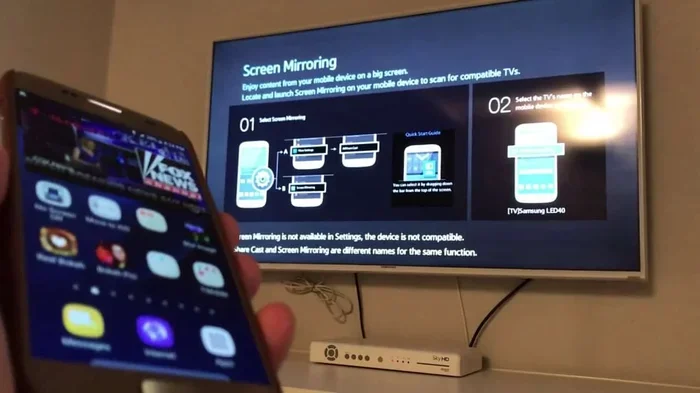
Taking these simple steps keeps your hotspot security strong and your personal data safe. You can enjoy screen mirroring and cast from phone features without worrying about strangers piggybacking on your connection.
Can You Use Multiple Devices on the Same Hotspot?
Yes, you can connect multiple devices to your phone hotspot at the same time. This means your friend can browse the web on their laptop while you cast from phone to your TV. However, there are limits.
Most phones support between 5 and 10 connected devices. The more devices you add, the slower the bandwidth gets for each one. If you are trying to stream HD video on your Chromecast while someone else is downloading a large file, the streaming quality will suffer.
For the best experience, keep the number of connected devices low. Ideally, only connect the device you are using to cast. This gives your streaming device the full bandwidth it needs for smooth playback.
Can You Cast Without the Phone Being On the Same Network?
This is a common question. The short answer is no. For Google Cast to work, the device casting (your phone) and the Chromecast must be on the same network. When you use a hotspot, both your phone and the Chromecast are on the same network, which is the hotspot itself.
Once the Chromecast is connected to the hotspot and streaming is working, you can lock your phone or switch to other apps. The streaming will continue as long as the hotspot stays active and the internet connection remains stable.
Can You Use a Hotspot for Chromecast Audio?
Absolutely. Chromecast Audio works the same way as the video version when connected to a mobile hotspot. You can stream music from Spotify, Pandora, or any supported app directly to your speakers. Since audio uses much less data than video, it is a great option if you are on a limited data plan.
The setup process is identical. Enable your portable hotspot, connect your Chromecast Audio to it, and start playing music. You will not notice any delay or quality loss compared to using a home Wi-Fi network.
Expert Tips for the Best Hotspot Chromecast Experience
After helping many people set up their mobile hotspot for Chromecast, here are the top tips that make the biggest difference:
- Keep your phone plugged in at all times. Hotspot mode drains battery quickly, and a dying phone means a dead streaming device.
- Place your phone near the Chromecast. The closer they are, the stronger the signal and the better the streaming quality.
- Update the Google Home app regularly. Updates fix bugs and improve compatibility with the latest Chromecast firmware.
- Restart both devices before setup. A fresh start on both your phone and Chromecast clears minor glitches that cause connection failures.
- Use a data-efficient streaming plan. If you plan to use your hotspot often, consider a carrier plan with generous mobile data allowances.
- Set a data warning on your phone. This alerts you before you accidentally exceed your data limit while streaming.
Frequently Asked Questions
Can I use my phone hotspot for Chromecast without Wi-Fi?
Yes, you can. Your phone hotspot creates its own Wi-Fi network using your mobile data. The Chromecast connects to this network, so you do not need a separate Wi-Fi router or home internet. As long as your phone has cellular signal, your streaming device can cast content to your TV.
Does using a hotspot for Chromecast drain my phone battery?
Yes, it does. Running a mobile hotspot uses significant battery power because your phone is constantly broadcasting a Wi-Fi signal. To avoid your phone dying mid-stream, plug it into a power source. You can also reduce battery drain by lowering the streaming quality and keeping the phone cool.
Why can’t my Chromecast find my hotspot?
The most common reason is that your hotspot is set to the 5 GHz band. Most Chromecast models only support 2.4 GHz networks. Go to your hotspot settings, switch the band to 2.4 GHz, and try again. Also make sure your hotspot is turned on and your Chromecast is within range.
How much data does casting with a hotspot use?
It depends on the video quality. Standard definition uses about 1 GB per hour, HD uses around 3 GB per hour, and 4K can use up to 7 GB per hour. Music streaming uses much less, around 100 MB per hour. Keep an eye on your data usage to avoid unexpected charges from your carrier.
Can I use my hotspot for Chromecast while someone else uses my phone for other things?
Yes, you can. Your phone can handle both the hotspot and regular tasks like browsing or texting. However, heavy internet use on your phone can slow down the bandwidth available for your Chromecast. For the best streaming experience, minimize other data-heavy activities on your phone while casting.
Is it safe to use a phone hotspot for Chromecast?
It is safe as long as you take basic precautions. Always set a strong password on your hotspot and use WPA2 or WPA3 encryption. Turn off the hotspot when you are not using it. These simple steps protect your internet connection and keep unauthorized users from accessing your mobile data.
Conclusion
Using your phone hotspot for Chromecast is a practical, convenient, and fully functional way to stream content to your TV. Whether you are traveling, at a rental property, or simply in a place without Wi-Fi, your mobile hotspot can power your streaming device with ease.
The setup is quick, the process is straightforward, and most problems have simple fixes. Just remember to use the 2.4 GHz band, keep an eye on your data usage, and secure your hotspot with a strong password. With these steps, you can cast from phone to TV anywhere you have cellular signal.
Now that you know how to use your portable hotspot with your Chromecast device, you are ready to stream anytime, anywhere. Try it out today and enjoy your favorite shows and movies without being tied to a home Wi-Fi network. The freedom of mobile data streaming is just a few taps away.