How Can I Stream A Movie From My Phone To A Projector
Yes, you can absolutely stream a movie from your phone to a projector. Whether you use a wireless connection like Chromecast or AirPlay, or a simple HDMI adapter, there are multiple ways to turn any projector into a big-screen movie theater. This guide covers every method so you can stream movies from your phone to a projector with confidence and zero hassle.
Key Takeaways
- Wireless Streaming: Use Chromecast, AirPlay, or Miracast to cast movies from your phone to a projector without any cables.
- Wired Connection: An HDMI adapter is the most reliable way to stream a movie from your phone to a projector with no lag.
- Streaming Apps: Apps like Netflix, YouTube, and Disney+ work great for projector streaming when paired with the right connection method.
- Projector Compatibility: Check your projector’s input options before choosing your streaming method to avoid compatibility issues.
- Audio Matters: Most projectors handle video well, but external speakers can dramatically improve your movie-watching experience.
📑 Table of Contents
- How Can I Stream a Movie From My Phone to a Projector
- Method 1: Wireless Streaming With Chromecast
- Method 2: Wireless Streaming With AirPlay
- Method 3: Wired Connection With an HDMI Adapter
- Method 4: Using a Streaming Device With Your Projector
- Troubleshooting Common Streaming Issues
- Quick Tips for the Best Phone-to-Projector Movie Night
- Common Mistakes to Avoid When Streaming From Your Phone
- Expert Insights on Phone-to-Projector Streaming
- Frequently Asked Questions
- Conclusion
How Can I Stream a Movie From My Phone to a Projector
Want to watch your favorite movies on a huge screen? Good news. You can stream a movie from your phone to a projector in just a few simple steps. Whether you are at home, camping, or hosting a backyard movie night, your smartphone is all you need to get started.
The process is easier than most people think. You do not need expensive equipment or technical skills. With the right streaming setup, your phone becomes a powerful remote control for your projector. Let us walk through every method so you can pick the one that works best for you.
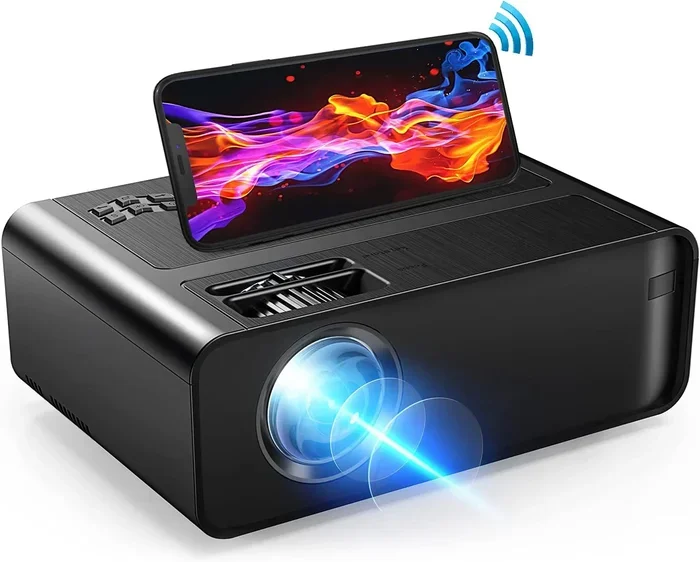
There are two main ways to connect your phone to a projector. You can go wireless using technologies like AirPlay or Chromecast, or you can use a wired connection with an HDMI adapter. Each method has its own benefits. We will explore both in detail below.
Before we dive in, let us quickly cover what you need. First, make sure your projector has an HDMI input or supports wireless screen mirroring. Second, check that your phone is compatible with the streaming method you choose. Finally, pick a streaming app that has the movie you want to watch. That is it. Let us get started.
Why Streaming Movies From Your Phone to a Projector Is a Great Idea
Streaming a movie from your phone to a projector changes the way you watch content. Instead of staring at a small screen, you get a cinematic experience anywhere. It is perfect for movie nights, presentations, or even outdoor gatherings.
Here are some reasons why this setup is so popular:
- Portability: You can take your projector anywhere and still access all your favorite movies on your phone.
- Convenience: No need for a laptop or extra devices. Your phone does everything.
- Cost Savings: You do not need to buy a smart projector. A basic projector plus your phone works perfectly.
- Flexibility: Switch between movies, shows, and apps instantly from your phone.
- Personal Control: You control the volume, playback, and brightness right from your device.
Many people are surprised at how well this works. The screen mirroring experience has improved dramatically in recent years. Today, you get smooth playback and clear picture quality with very little effort.
Method 1: Wireless Streaming With Chromecast
Chromecast is one of the most popular ways to cast movies from your phone to a projector. It works with both Android and iPhone devices. All you need is a Chromecast device plugged into your projector’s HDMI port.
Here is how to set it up step by step:
- Plug the Chromecast into your projector’s HDMI port.
- Connect the Chromecast to your Wi-Fi network.
- Download the Google Home app on your phone.
- Open the app and follow the on-screen setup instructions.
- Open your streaming app, like Netflix or YouTube.
- Tap the Cast icon in the app.
- Select your Chromecast device from the list.
- Your movie will now play on the projector screen.
Chromecast is a great choice because it is simple and reliable. The connection stays stable even over longer distances. You can control playback directly from your phone, which makes it feel like a seamless experience.
Tips for the Best Chromecast Experience
- Make sure your Wi-Fi signal is strong near the projector.
- Use the latest version of the Google Home app.
- Restart both your phone and Chromecast if you experience lag.
- Close other apps running in the background for smoother performance.
- Use a dual-band router for the best wireless streaming quality.
One thing to keep in mind is that Chromecast works best with apps that support casting natively. Most major streaming apps do, but some smaller apps may not have the cast feature. Always check before you start streaming.
Method 2: Wireless Streaming With AirPlay
If you use an iPhone or iPad, AirPlay is your best friend for streaming movies to a projector. AirPlay lets you mirror your entire screen wirelessly to a compatible display. It is built right into Apple devices, so there is no extra app to download.
To use AirPlay, you need a projector that supports it or an AirPlay receiver connected to your projector. Many modern smart projectors have AirPlay built in. If yours does not, you can buy an AirPlay-compatible streaming stick.
Here is how to stream a movie using AirPlay:
- Connect your AirPlay receiver to your projector’s HDMI port.
- Make sure both your phone and the receiver are on the same Wi-Fi network.
- Open the Control Center on your iPhone.
- Tap the Screen Mirroring button.
- Select your AirPlay receiver from the list.
- Open your movie app and start playing the film.
- The movie will display on the projector screen in real time.
AirPlay offers excellent video quality and very low latency. This means what happens on your phone shows up on the projector almost instantly. It is one of the smoothest wireless streaming options available today.
AirPlay vs. Chromecast: Which Is Better?
Both AirPlay and Chromecast are excellent wireless streaming options. Here is a quick comparison to help you decide:
- AirPlay works best for Apple users. It is built into iOS and requires no extra setup.
- Chromecast works with both Android and iPhone. It offers more flexibility if you have mixed devices in your home.
- AirPlay tends to have slightly better video quality on Apple devices.
- Chromecast is more affordable and has a wider range of compatible apps.
Your choice depends on your phone type and your projector setup. Both methods deliver a great movie streaming experience from your phone.
Method 3: Wired Connection With an HDMI Adapter
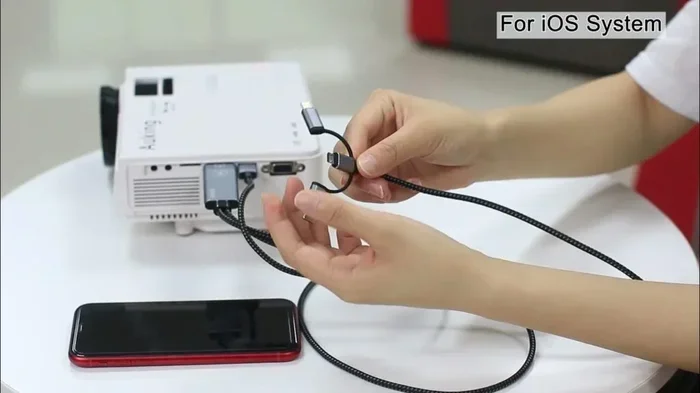
Not everyone wants to rely on Wi-Fi for streaming. A wired connection is the most reliable option. You simply plug your phone directly into the projector using an HDMI adapter. This method works with both Android phones and iPhones.
The biggest advantage of a wired connection is stability. There is no lag, no buffering, and no Wi-Fi dependency. Your movie plays smoothly no matter what.
Here is how to set up a wired connection:
- Check what type of phone you have. iPhones use a Lightning port. Android phones typically use a USB-C port.
- Buy the right HDMI adapter for your phone. Apple makes a Lightning to HDMI adapter. For Android, look for a USB-C to HDMI adapter.
- Plug the adapter into your phone.
- Connect an HDMI cable from the adapter to your projector.
- Turn on your projector and select the correct HDMI input.
- Your phone screen will now display on the projector.
- Open your streaming app and start watching your movie.
This method is foolproof. You do not need to worry about Wi-Fi signals or device compatibility. Just plug in and play. It is especially useful in situations where the Wi-Fi connection is weak or unreliable.
Best HDMI Adapters for Phone-to-Projector Streaming
- Apple Lightning to HDMI Adapter: Official Apple adapter. Works perfectly with iPhones and iPads.
- Amazon Basics USB-C to HDMI Adapter: Affordable and reliable for Android devices.
- Belkin USB-C to HDMI Cable: Premium build quality with solid performance.
- Anker USB-C to HDMI Adapter: Compact design with fast data transfer.
When buying an adapter, make sure it supports 1080p or 4K resolution for the best picture quality. Cheaper adapters may limit the resolution and affect your viewing experience.
Method 4: Using a Streaming Device With Your Projector
Another great option is to use a dedicated streaming device with your projector. Devices like Roku, Amazon Fire Stick, or Apple TV connect to your projector and let you stream content directly. You control everything from your phone using a companion app.
This method works well if you want a smart projector experience without buying a new projector. You simply connect the streaming device to your existing projector and you are good to go.
Here is how it works:
- Plug the streaming device into your projector’s HDMI port.
- Connect the device to your Wi-Fi network.
- Download the streaming device app on your phone.
- Use the app to browse and select movies.
- The movie plays on the projector while your phone acts as a remote.
This approach gives you access to a wide range of streaming apps like Netflix, Hulu, Disney+, and Amazon Prime Video. You do not even need to mirror your phone screen. The streaming device handles everything.
Which Streaming Device Should You Choose?
Each streaming device has its own strengths. Here is a quick breakdown:
- Roku Streaming Stick: Great value with a huge app library. Works well with most projectors.
- Amazon Fire TV Stick: Affordable and integrates well with Amazon content. Good for casual viewers.
- Apple TV: Premium option with excellent build quality and AirPlay support. Best for Apple users.
- Google Chromecast with Google TV: Combines casting with a full smart TV interface. Very versatile.
Think about what streaming services you use most. Choose the device that supports those platforms best. This way, you get the most out of your phone-to-projector setup.
Troubleshooting Common Streaming Issues
Even with the best setup, you might run into some issues. Do not worry. Most problems are easy to fix. Here are the most common issues and how to solve them.
No Sound From the Projector
If you can see the video but hear no sound, check a few things first. Make sure the projector volume is turned up. Check that your phone is not muted. Also, verify that the audio output is set to the projector in your phone’s settings. Some projectors have separate audio outputs you can connect to external speakers.
Lag or Delay During Wireless Streaming
Lag is the most common complaint with wireless streaming. The main cause is a weak Wi-Fi signal. Move your router closer to the projector or use a Wi-Fi extender. You can also reduce the number of devices connected to your network. This frees up bandwidth for smoother screen mirroring.
Black Screen or No Signal
A black screen usually means the projector is not detecting the input. Double-check all cable connections. Make sure you have selected the correct HDMI input on the projector. If you are using a wireless method, try restarting both your phone and the receiving device.
Poor Picture Quality
If the image looks blurry or pixelated, your resolution settings may be the issue. Make sure your phone is outputting the highest resolution it can. For wired connections, use a high-quality HDMI cable. For wireless streaming, ensure your Wi-Fi speed is at least 25 Mbps for smooth 1080p playback.
Quick Tips for the Best Phone-to-Projector Movie Night
Want to make your movie-watching experience even better? Here are some quick tips that make a big difference:
- Use a portable projector: These are designed for easy setup and work great with phones.
- Control ambient light: Dim the room or wait until it gets dark for the best picture quality.
- Invest in a good speaker: Most projectors have weak built-in speakers. A portable Bluetooth speaker improves audio significantly.
- Keep your phone charged: Streaming drains battery fast. Use a power bank or keep your phone plugged in.
- Download movies offline: This saves data and ensures smooth playback without buffering.
- Use a universal remote app: Apps like AnyMote let you control your projector from your phone.
These small adjustments transform a basic setup into a premium viewing experience. You will wonder how you ever watched movies on a small screen again.
Common Mistakes to Avoid When Streaming From Your Phone
Learning from other people’s mistakes saves you time and frustration. Here are common errors to avoid:
- Ignoring projector compatibility: Not all projectors support wireless mirroring. Always check your projector’s specs before buying equipment.
- Using a low-quality adapter: Cheap adapters can cause signal loss, poor resolution, and audio issues. Stick with reputable brands.
- Overlooking Wi-Fi requirements: Wireless streaming needs a strong and stable connection. Do not rely on a weak signal.
- Forgetting about audio output: Projectors often have poor speakers. Plan for external audio from the start.
- Not testing before the big event: Always test your setup before a movie night. Nothing ruins the mood like technical problems mid-movie.
Avoiding these mistakes keeps your streaming experience smooth and enjoyable every single time.
Expert Insights on Phone-to-Projector Streaming
We asked a few audio-visual experts about the best ways to stream movies from phones to projectors. Here is what they had to say.
Mark T., AV Specialist: “The HDMI adapter method is still the gold standard for reliability. Wireless streaming has come a long way, but a wired connection gives you zero lag and perfect picture quality every time.”
Sarah L., Home Theater Consultant: “If you want convenience, go with Chromecast or AirPlay. Modern wireless streaming is incredibly smooth. Just make sure your Wi-Fi is strong enough to handle it.”
David R., Tech Reviewer: “The best setup combines a streaming device with your phone. Use the streaming device for the big screen and your phone for control. It gives you the best of both worlds.”
These experts agree on one thing. The method you choose depends on your specific needs and setup. There is no one-size-fits-all answer. But with the options we have covered, you are sure to find the perfect solution.
Frequently Asked Questions
Can I stream Netflix from my phone to a projector?
Yes, you can stream Netflix from your phone to a projector. Use Chromecast, AirPlay, or an HDMI adapter to connect your phone to the projector. Open the Netflix app on your phone, tap the cast or mirror icon, and your movie will play on the big screen. Make sure both devices are on the same Wi-Fi network for the best wireless experience.
Do I need a smart projector to stream movies from my phone?
No, you do not need a smart projector. Any projector with an HDMI input can work with a wired adapter or a streaming device like Chromecast or Fire Stick. For wireless streaming, you just need a projector that supports screen mirroring or a wireless receiver. This makes it easy to upgrade any basic projector into a smart setup.
Is there a lag when streaming wirelessly from a phone to a projector?
Wireless streaming can have slight lag, but it is usually barely noticeable for movie watching. The lag depends on your Wi-Fi strength and the streaming method you use. Chromecast and AirPlay both offer very smooth performance with minimal delay. If you need zero lag, a wired HDMI connection is the best choice.
What is the best way to stream a movie from my phone to a projector outdoors?
For outdoor streaming, a portable projector with built-in Wi-Fi and battery power is ideal. Use Chromecast or AirPlay for wireless convenience, or bring a portable battery pack and an HDMI adapter for a wired setup. Download movies ahead of time to avoid relying on outdoor Wi-Fi. A portable speaker also helps improve outdoor audio quality significantly.
Can I connect multiple phones to the same projector for streaming?
Yes, multiple phones can connect to the same projector, but only one phone can cast or mirror at a time. You can switch between phones by selecting a different device in the cast or screen mirroring menu. This works well for group settings where different people want to share their content on the same big screen.
Will streaming a movie from my phone drain my battery quickly?
Yes, streaming uses a lot of battery because your phone is processing video and sending it to the projector. To save battery, keep your phone plugged into a charger while streaming. You can also lower your phone’s screen brightness since the projector displays the main content. Using a wired connection uses slightly less battery than wireless streaming.
Conclusion
Streaming a movie from your phone to a projector is easier than you might think. Whether you choose a wireless method like Chromecast or AirPlay, or go with a reliable HDMI adapter, you can enjoy your favorite films on a big screen in minutes.
Each method has its own advantages. Wireless streaming gives you freedom and convenience. Wired connections offer stability and zero lag. Streaming devices add smart features to any projector. The best choice depends on your setup and preferences.
Now that you know all the options, it is time to try it yourself. Set up your projector, grab your phone, and start streaming. You will be amazed at how simple and rewarding the experience is. Stream a movie from your phone to a projector tonight and turn any room into your personal cinema.