Can I Project Netflix From Iphone To Your Projector
Yes, you can project Netflix from iPhone to your projector using several simple methods like AirPlay, HDMI adapters, or streaming devices. Whether you want a wireless connection or a wired setup, this guide covers every option you need for a seamless big-screen movie night. You will learn the best techniques, common mistakes to avoid, and expert tips to get the clearest picture and sound.
Key Takeaways
- AirPlay is the easiest wireless method to project Netflix from iPhone to a compatible projector without any cables.
- A Lightning to HDMI adapter provides a reliable wired connection for projectors that do not support AirPlay.
- Streaming devices like Roku or Apple TV offer a flexible middle ground between wireless and wired setups.
- Wi-Fi quality matters a lot for smooth, lag-free Netflix streaming on a projector screen.
- Common mistakes include using the wrong cable or ignoring projector resolution settings, which can ruin your viewing experience.
- Audio issues are common but easy to fix by checking your projector or adapter settings.
- Not all projectors support screen mirroring, so check compatibility before you buy or set up.
📑 Table of Contents
- Can I Project Netflix From iPhone To Your Projector?
- Why Project Netflix From iPhone to a Projector?
- Methods to Connect iPhone to a Projector
- Step-by-Step Guide for Wireless Projection
- Troubleshooting Common Issues
- Best Projectors for iPhone Netflix Streaming
- Quick Tips for the Best Viewing Experience
- Is It Legal to Project Netflix on a Projector?
- Can I Use Netflix Offline on a Projector?
- Conclusion
Can I Project Netflix From iPhone To Your Projector?
Absolutely! You can project Netflix from iPhone to your projector in just a few simple steps. It does not matter if your projector is old-school or brand new. There is always a way to get your favorite shows up on the big screen.
Imagine this. You are lying on the couch. The room is dark. And your favorite movie is playing on a huge projector screen. That is the magic of connecting your iPhone to a projector. It turns any room into your personal cinema.
The good news is that you do not need to be a tech expert. Whether you use AirPlay, an HDMI cable, or a streaming stick, the process is straightforward. This guide will walk you through every method. You will also learn how to fix common issues and get the best picture quality every time.
Let us dive right in and explore all the ways you can stream Netflix from your iPhone to a projector.
Why Project Netflix From iPhone to a Projector?
Streaming Netflix on a small phone screen can feel limiting. You miss details. The colors look flat. And let us be honest. It is just not the same as a big-screen experience.
When you project Netflix from iPhone to a projector, everything changes. The picture fills the wall. The colors pop. The sound feels richer. Suddenly, a simple movie night becomes an event.
Here are a few reasons why this setup is worth it:
- Bigger screen size makes every scene more immersive.
- Better group viewing lets friends and family enjoy together.
- Portable projectors let you set up anywhere, indoors or outdoors.
- No extra subscriptions needed. You already pay for Netflix.
- Easy to set up with tools you likely already own.
Many people also use this setup for movie nights in the backyard or game day parties. The flexibility is a huge bonus. You are not stuck in your living room. You can take the projector anywhere and still stream Netflix from your iPhone.
Methods to Connect iPhone to a Projector
There are three main ways to project Netflix from iPhone to a projector. Each method has its own pros and cons. Let us break them down so you can pick the best one for your setup.
Method 1: AirPlay (Wireless Connection)
AirPlay is Apple’s built-in wireless streaming feature. It lets you mirror your iPhone screen to a compatible projector or smart TV. This is the easiest and most convenient method if your projector supports it.
To use AirPlay, you need:
- An iPhone running iOS 12 or later.
- A projector that supports AirPlay or a streaming device like Apple TV connected to the projector.
- Both devices on the same Wi-Fi network.
The steps are simple. Open Netflix on your iPhone. Tap the AirPlay icon. Select your projector from the list. Your screen will appear on the projector instantly. You can control playback right from your phone.
AirPlay is great because it is wireless and does not require any extra cables. However, it does rely on a strong Wi-Fi connection. If your Wi-Fi is weak, you may experience lag or buffering.
Method 2: Lightning to HDMI Adapter (Wired Connection)
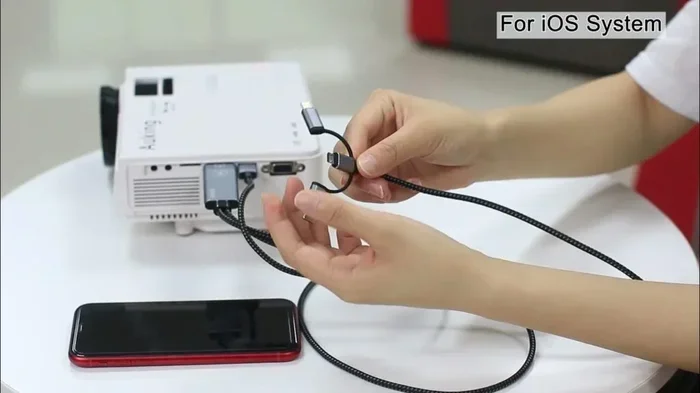
If your projector does not support AirPlay, a wired connection is your best bet. You will need a Lightning to HDMI adapter and an HDMI cable. This method works with almost any projector that has an HDMI port.
Here is what you need to do:
- Plug the Lightning end of the adapter into your iPhone.
- Connect the HDMI cable to the adapter.
- Plug the other end of the HDMI cable into your projector.
- Switch the projector to the correct HDMI input.
- Open Netflix on your iPhone. Your screen will now display on the projector.
This method is very reliable. You do not have to worry about Wi-Fi drops or signal interference. The picture quality is usually excellent because the connection is direct. The downside is that you are tethered to the projector by a cable.
Make sure you buy an Apple-certified adapter. Cheap knockoff adapters can cause display issues or even damage your iPhone.
Method 3: Streaming Device (Roku, Fire Stick, Apple TV)
A streaming device acts as a bridge between your iPhone and the projector. You plug the device into the projector’s HDMI port. Then you use the device’s app to stream Netflix from your iPhone.
Popular options include:
- Roku — works well with most projectors and supports screen mirroring.
- Amazon Fire TV Stick — affordable and easy to set up.
- Apple TV — the best choice for iPhone users who want seamless AirPlay support.
With a streaming device, you get access to the Netflix app directly on the projector. You can also use your iPhone as a remote through the device’s companion app. This method gives you more flexibility and often better performance than screen mirroring.
Comparison Table: Wireless vs. Wired vs. Streaming Device
| Feature | AirPlay (Wireless) | HDMI Adapter (Wired) | Streaming Device |
|---|---|---|---|
| Setup Difficulty | Very Easy | Easy | Moderate |
| Cable Needed | No | Yes (HDMI + Adapter) | Yes (HDMI Cable Only) |
| Wi-Fi Required | Yes | No | Yes |
| Picture Quality | Good | Excellent | Excellent |
| Lag or Delay | Possible | None | Minimal |
| Cost | Free | $10-$20 for adapter | $30-$150 for device |
| Best For | Quick setups | Stable, reliable viewing | Full smart projector setup |
Step-by-Step Guide for Wireless Projection
Wireless projection is the most popular way to project Netflix from iPhone to a projector. Here is a detailed walkthrough to make sure everything works smoothly.
Step 1: Check Projector Compatibility
Not all projectors support AirPlay or screen mirroring. Before you start, check your projector’s manual or settings menu. Look for terms like “AirPlay,” “Miracast,” “screen mirroring,” or “wireless display.”
If your projector does not have built-in wireless support, do not worry. You can use an Apple TV or a compatible wireless adapter to add this feature.
Step 2: Connect Both Devices to the Same Wi-Fi Network
This is the most important step. Your iPhone and your projector (or streaming device) must be on the same Wi-Fi network. If they are on different networks, the connection will fail.
Go to your iPhone settings. Tap Wi-Fi. Make sure it is connected. Then check your projector or Apple TV settings. Confirm it is on the same network.
Step 3: Open Netflix and Start Playing
Open the Netflix app on your iPhone. Choose the movie or show you want to watch. Tap the screen to bring up the playback controls.
You should see the AirPlay icon. It looks like a rectangle with a triangle at the bottom. Tap it and select your projector from the list.
Your iPhone screen will now appear on the projector. You can control playback, volume, and even skip scenes right from your phone.
Step 4: Adjust Projector Settings
Once the connection is live, take a moment to adjust your projector settings. Make sure the resolution matches your content. Turn off any keystone correction if it causes image distortion. Adjust the brightness based on your room lighting.
These small tweaks make a big difference in picture quality.
Troubleshooting Common Issues
Sometimes things do not go as planned. Here are the most common problems people face when trying to project Netflix from iPhone to a projector, along with quick fixes.
Black Screen or No Signal
If your projector shows a black screen or says “no signal,” try these steps:
- Check that the HDMI cable is firmly connected on both ends.
- Make sure the projector is set to the correct input source.
- Restart your iPhone and try again.
- If using AirPlay, turn Wi-Fi off and back on.
Lag or Buffering During Playback
Lag is frustrating but usually easy to fix. The main cause is a weak Wi-Fi signal. Move your router closer to the projector. Or use a wired HDMI connection instead of wireless.
You can also lower the Netflix streaming quality. Go to Netflix settings on your iPhone. Reduce the data usage. This can help smooth out playback on slower networks.
No Audio or Poor Sound
If the video plays but there is no sound, check a few things:
- Make sure the projector volume is turned up.
- Check that your iPhone is not muted.
- If using an adapter, make sure it supports audio output.
- Try connecting external speakers to the projector for better sound.
Expert Insight
Many people overlook audio settings when setting up a projector. Your iPhone sends both video and audio through the connection. But sometimes the projector defaults to a different audio source. Always double-check the audio output settings on both devices before troubleshooting further.
iPhone Screen Mirroring Not Showing
If AirPlay does not appear, try these fixes:
- Restart your iPhone and projector.
- Make sure both are on the same Wi-Fi network.
- Update your iPhone to the latest iOS version.
- Check if your projector firmware needs an update.
Best Projectors for iPhone Netflix Streaming
Not all projectors are created equal. Some work better than others for streaming Netflix from an iPhone. Here are a few top picks across different price ranges.
Portable Projectors
Portable projectors are perfect for casual viewing. They are small, lightweight, and easy to carry. Many modern portable projectors support AirPlay and Wi-Fi streaming natively.
Popular choices include the Anker Nebula Capsule and the ViewSonic M1. These projectors are compact and deliver surprisingly good picture quality for their size.
Home Theater Projectors
For the best Netflix experience, a home theater projector is the way to go. These projectors offer high resolution, bright images, and excellent color accuracy.
The Epson Home Cinema series and the BenQ HT series are well-regarded options. They work beautifully with iPhone screen mirroring and HDMI connections.
Budget-Friendly Options
You do not need to spend a fortune. Budget projectors like the Vankyo Leisure series offer decent picture quality at an affordable price. Just make sure the projector has an HDMI port for a wired connection.
Quick Tips for the Best Viewing Experience
Want to get the most out of your Netflix projector setup? Follow these quick tips:
- Dim the lights. A darker room makes the projected image look sharper and more vibrant.
- Use a white wall or projector screen. A proper screen makes a huge difference in image clarity.
- Keep your iPhone charged. Streaming Netflix drains battery fast. Plug in your phone or use a portable charger.
- Update the Netflix app. The latest version often includes performance improvements and bug fixes.
- Use a Wi-Fi extender. If your projector is far from the router, a Wi-Fi extender boosts the signal.
- Turn off notifications. Put your iPhone in Do Not Disturb mode to avoid interruptions during your movie.
Common Mistakes to Avoid
Here are mistakes many people make when setting up their iPhone projector connection:
- Using a non-Apple adapter. Cheap adapters can cause flickering, no sound, or poor image quality. Stick with Apple-certified products.
- Ignoring projector resolution. If your projector resolution does not match the Netflix content, the picture may look blurry or stretched.
- Streaming on public Wi-Fi. Hotel or café Wi-Fi networks often block screen mirroring. Use your home network for the best experience.
- Forgetting to update software. Outdated iOS or projector firmware can cause compatibility issues. Always keep your devices updated.
- Placing the projector too far from the screen. This can make the image too dim or too small. Follow the projector’s recommended throw distance.
Is It Legal to Project Netflix on a Projector?
Yes, it is perfectly legal to project Netflix from your iPhone to a projector for personal use. Netflix is a paid subscription service. As long as you are logged into your own account and watching in a private setting, you have nothing to worry about.
However, you should not record or redistribute the content. That would violate Netflix’s terms of service and copyright laws. For personal home viewing, you are completely in the clear.
Some people wonder if projecting Netflix in a public setting is allowed. The answer is no. Public screenings require a separate public performance license. So stick to private use and you will be fine.
Can I Use Netflix Offline on a Projector?
Yes! Netflix allows you to download movies and shows on your iPhone for offline viewing. You can then play the downloaded content and mirror it to your projector. This is a great option for places without reliable Wi-Fi, like camping trips or flights.
To do this, download the content on your Netflix app first. Then use any of the connection methods described above to project it. The downloaded file will play on your projector just like it would on your phone screen.
Conclusion
Projecting Netflix from iPhone to your projector is easier than you might think. Whether you choose AirPlay for wireless convenience, an HDMI adapter for a rock-solid connection, or a streaming device for full smart features, there is a method that fits your needs and budget.
The key is to match your projector’s capabilities with the right connection method. Check compatibility first. Set up on the same Wi-Fi network. Use quality cables and adapters. And do not forget the small tweaks that make a big difference, like dimming the lights and adjusting the projector settings.
Once you experience Netflix on a big projector screen, you will never want to go back to watching on your phone. It transforms your viewing experience in a way that is hard to describe. You feel like you are inside the movie.
So go ahead. Grab your iPhone. Set up your projector. And enjoy your next Netflix marathon on the big screen. You have got everything you need to make it happen tonight.
Frequently Asked Questions
Do I need a special projector to stream Netflix from my iPhone?
Not necessarily. Any projector with an HDMI port will work using a Lightning to HDMI adapter. If you want wireless streaming, your projector needs to support AirPlay or you can use a device like Apple TV connected to it.
Why is my Netflix screen black when projecting from iPhone?
A black screen usually means the connection is not fully established. Check that both devices are on the same Wi-Fi network if using AirPlay. If using a cable, make sure the HDMI adapter and cable are firmly plugged in. Restarting both devices often fixes this issue.
Can I use any HDMI adapter with my iPhone?
It is best to use an Apple-certified Lightning to HDMI adapter. Third-party adapters may not work reliably and can cause audio or video issues. Apple-certified adapters ensure compatibility and protect your device.
Does projecting Netflix from iPhone to a projector use a lot of data?
Yes, streaming Netflix in HD or 4K uses a significant amount of data. HD streaming uses about 3 GB per hour, and 4K uses about 7 GB per hour. If you are on a limited data plan, consider lowering the streaming quality in your Netflix settings before projecting.
Can I connect my iPhone to a projector without Wi-Fi?
Yes. Using a Lightning to HDMI adapter and an HDMI cable does not require Wi-Fi at all. This wired method works independently of any wireless connection and provides a stable, lag-free experience.
What is the best way to get sound through my projector when streaming Netflix?
If your projector has built-in speakers, the audio will come through them automatically when you connect via HDMI or AirPlay. For better sound quality, connect external speakers to the projector’s audio output or use a Bluetooth speaker paired with your iPhone.