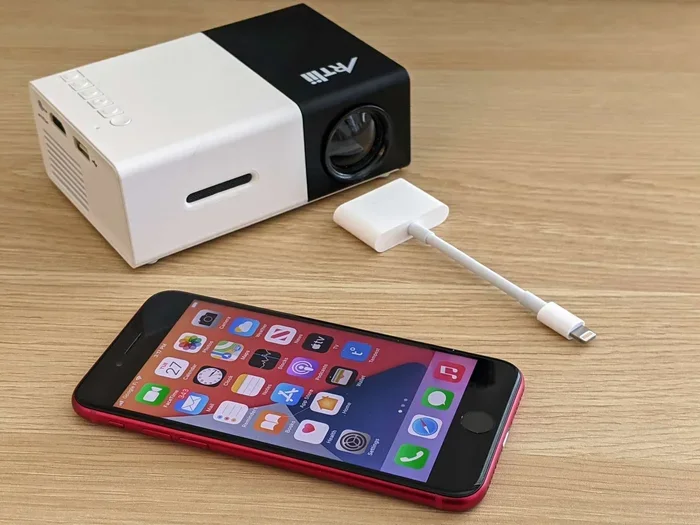
Can I Project My Iphone To A Projector Without Any Hassle
Yes, you can project your iPhone to a projector using either a cable or a wireless connection. Whether you need to share a presentation, stream a movie, or display photos on a big screen, there is a simple method that works for you. This guide covers every option, from Lightning to HDMI adapters to AirPlay and third-party apps. You will learn the fastest setup, common mistakes to avoid, and expert tips for a flawless wireless projection experience every single time.
Have you ever wanted to show something on your iPhone to a room full of people? Maybe it is a slideshow, a video, or an app demo. The good news is that you absolutely can project your iPhone to a projector. It is easier than most people think, and you do not need to be a tech expert to make it work.
Whether you are a student giving a class presentation, a professional pitching an idea, or someone who just wants to watch movies on a bigger screen, knowing how to connect your iPhone to a projector opens up a world of possibilities. The process is straightforward once you understand your options.
In this guide, we will walk you through every method available. You will learn about wired connections, wireless options, and the best tools for each approach. We will also share practical tips, common mistakes, and troubleshooting advice. By the end, you will feel confident projecting your iPhone to any projector in any room.
Key Takeaways
- Multiple Methods Available: You can project your iPhone to a projector using cables, AirPlay, Apple TV, or third-party apps.
- Wired Is Most Reliable: A Lightning or USB-C to HDMI adapter gives you a stable, lag-free connection every time.
- Wireless Offers Convenience: AirPlay and Wi-Fi projection let you go cable-free, though some setup is required.
- Compatibility Matters: Not every projector supports wireless mirroring, so check your projector specs before buying accessories.
- Quick Fixes Exist: Most common issues like no sound or black screens can be solved with simple troubleshooting steps.
- Preparation Is Key: Having the right adapter, a stable Wi-Fi connection, and updated software prevents most projection problems.
📑 Table of Contents
- Why You Would Want to Project Your iPhone to a Projector
- Methods to Project iPhone to a Projector
- How to Connect Your iPhone to a Projector with a Cable
- Wireless Ways to Project iPhone to a Projector
- Tips for a Smooth Projection Experience
- Common Mistakes When Projecting iPhone to a Projector
- Troubleshooting Common Projection Problems
- Best Projectors for iPhone Users
- Final Thoughts
Why You Would Want to Project Your iPhone to a Projector
There are many reasons why people want to mirror their iPhone screen onto a larger display. Let us look at the most common ones.
Presentations and Meetings
If you use your iPhone to store slides, notes, or documents, projecting directly from your device saves time. You do not need to transfer files to a laptop. You just connect and present. This is especially helpful for professionals who are always on the go.
Sharing Photos and Videos
Want to show your vacation photos to friends and family? Or play a home video on a big screen? Projecting your iPhone makes any gathering more fun and interactive. The larger display brings every detail to life.
Education and Learning
Teachers and students use iPhone projection in classrooms every day. Showing educational apps, diagrams, or video content on a projector helps everyone see clearly. It makes lessons more engaging and memorable.
Entertainment
Sometimes you just want a bigger screen for movie night. Streaming services on your iPhone look amazing when projected. You can turn any blank wall or projector screen into your personal home theater.
Methods to Project iPhone to a Projector
There are two main ways to connect your iPhone to a projector. You can use a cable, or you can go wireless. Each method has its own advantages. Let us explore both in detail.
Wired Connection
A wired connection uses a physical cable or adapter to link your iPhone directly to the projector. This method is the most reliable. You get a stable picture with no lag or interference. It works even if the projector does not support Wi-Fi.
The most common wired setup involves a Lightning to HDMI adapter or a USB-C to HDMI cable for newer iPhone models. You plug one end into your iPhone, the other into the projector, and your screen appears instantly. It is that simple.
Wireless Connection
Wireless projection lets you go cable-free. You use Wi-Fi or Bluetooth to send your iPhone screen to the projector. This method is great for convenience and flexibility. You can move around the room while your screen stays visible.
The most popular wireless option is AirPlay, Apple’s built-in screen mirroring feature. You can also use third-party apps or connect through an Apple TV box. Wireless projection works best when both your iPhone and the projector are on the same Wi-Fi network.
| Feature | Wired Connection | Wireless Connection |
|---|---|---|
| Reliability | Very high, no signal drops | Good, depends on Wi-Fi strength |
| Setup Time | Under 1 minute | 1-3 minutes |
| Cable Needed | Yes | No |
| Latency | None | Slight delay possible |
| Mobility | Limited by cable length | Full freedom to move |
| Best For | Presentations, static content | Casual sharing, streaming |
How to Connect Your iPhone to a Projector with a Cable
Wired connections are the fastest and most dependable way to project your iPhone to a projector. Here is everything you need to know.
Lightning to HDMI Adapter
If you have an iPhone 14 or older model, you will use a Lightning to HDMI adapter. These small dongles are affordable and easy to find. You plug the adapter into your iPhone’s charging port, connect an HDMI cable from the adapter to the projector, and you are done.
Most adapters also have a secondary charging port. This means you can keep your iPhone powered while projecting. That is a great feature for long presentations or movie sessions.
Here is what you need for a wired setup:
- A Lightning to HDMI adapter or cable
- An HDMI cable (usually included with the adapter)
- A projector with an HDMI input port
- A power source for your iPhone (optional but recommended)
USB-C to HDMI for Newer iPhones
iPhone 15 and iPhone 16 models use USB-C instead of Lightning. The connection process is very similar. You use a USB-C to HDMI cable or adapter. Plug the USB-C end into your iPhone and the HDMI end into the projector.
USB-C offers faster data transfer and better video quality. If you want the best possible resolution when you project your iPhone to a projector, USB-C is the way to go. These cables also support higher refresh rates, which is great for video content.
Quick Tip: Always test your cable and adapter before an important presentation. Plug everything in at home first to make sure the projector recognizes your iPhone. This simple step saves a lot of stress later.
Wireless Ways to Project iPhone to a Projector
Wireless projection gives you freedom and flexibility. You do not need to sit near the projector or deal with cables. Let us look at the best wireless methods.
Using AirPlay
AirPlay is Apple’s built-in wireless projection technology. It works seamlessly with iPhones and compatible projectors or displays. To use AirPlay, both your iPhone and the receiving device must be on the same Wi-Fi network.
Here is how to mirror your iPhone screen using AirPlay:
- Connect your iPhone and the projector (or Apple TV) to the same Wi-Fi network
- Open the Control Center by swiping down from the top right of your screen
- Tap the Screen Mirroring button
- Select your projector or Apple TV from the list
- Your iPhone screen will now appear on the projector
AirPlay is incredibly easy to use. The connection is smooth, and the video quality is excellent. However, it does require a projector that supports AirPlay or an Apple TV device connected to the projector.
Using Third-Party Apps
Not every projector supports AirPlay natively. In that case, third-party projection apps come to the rescue. Apps like Epson iProjection, Screen Mirroring, and LetsView allow you to project your iPhone to a projector over Wi-Fi.
These apps work by connecting your iPhone to the projector through your local network. You install the app on your iPhone, enter the projector’s IP address, and start mirroring. Some apps also support casting photos, videos, and documents directly.
Most third-party apps are free or have free versions with enough features for everyday use. They are a great option when you do not want to buy extra hardware.
Connecting via Apple TV
If your projector does not have smart features, you can add an Apple TV box. Apple TV connects to the projector through HDMI and acts as a receiver for AirPlay. This setup turns any dumb projector into a smart, wireless-ready display.
To set this up, connect the Apple TV to the projector with an HDMI cable. Then connect both your iPhone and Apple TV to the same Wi-Fi network. Open Control Center, tap Screen Mirroring, and select your Apple TV. Your iPhone screen will appear on the projector instantly.
This method is slightly more expensive because you need to buy an Apple TV. But it provides the best wireless experience with minimal setup and no latency issues.
Tips for a Smooth Projection Experience
Getting your iPhone connected to a projector is only half the battle. Making sure everything looks and sounds great takes a little preparation. Here are some practical tips to help you every time.
Check Projector Compatibility First
Before you buy any adapter or app, check what inputs your projector has. Most modern projectors include HDMI ports, which work with all iPhone adapters. Some older projectors only have VGA inputs, which require a different adapter. Knowing your projector’s specs saves time and money.
Use a High-Quality Adapter
Cheap adapters can cause flickering, low resolution, or no signal at all. Buy adapters from reputable brands or directly from Apple. A quality adapter cable ensures stable performance and the best projector resolution. Spending a few extra dollars on a good adapter is always worth it.
Keep Your iPhone Updated
Software updates often include fixes for display mirroring issues. Before a big presentation, update your iPhone to the latest iOS version. This simple step can prevent unexpected bugs and connection problems.
Manage Your Wi-Fi Network
If you are using wireless projection, a strong Wi-Fi signal is essential. Make sure your router is close to the projector and your iPhone. Avoid crowded networks with many connected devices. A dedicated Wi-Fi network for projection gives the best results.
Turn Off Notifications
Nothing ruins a presentation like a random notification popping up on your projected screen. Turn on Do Not Disturb mode before you start projecting. This keeps your screen clean and professional.
Expert Insight: According to AV professionals, the biggest mistake people make is not testing their setup beforehand. Always do a full test run at least 30 minutes before your presentation. Check the picture quality, sound, and cable connections. A quick test prevents embarrassing technical issues in front of an audience.
Common Mistakes When Projecting iPhone to a Projector
Even with the best setup, things can go wrong. Here are the most common mistakes and how to avoid them.
Using the Wrong Adapter
Not all adapters work with all iPhone models. Lightning adapters do not work with USB-C iPhones, and vice versa. Always double-check which port your iPhone has before purchasing an adapter. Buying the wrong one means wasted time and money.
Ignoring Audio Settings
Sometimes the video shows on the projector but there is no sound. This usually happens because the audio output is still set to your iPhone’s speakers. To fix this, go to Settings, tap Sounds, and check your output device. You can also use the Control Center to switch audio output to the projector.
Forgetting to Enable Screen Mirroring
Some people connect the cable but do not realize they need to enable screen mirroring on the projector. Check your projector’s menu and make sure the correct input source is selected. Without this step, you will see a blank screen even though everything is connected.
Overlooking Wi-Fi Requirements
Wireless projection requires both devices to be on the same network. A common mistake is connecting to a guest Wi-Fi network that blocks device-to-device communication. Always use the main network for projection, or create a dedicated hotspot if needed.
Not Charging Your iPhone
Screen mirroring drains your iPhone battery quickly. If you are projecting for more than 30 minutes, plug your iPhone into a power source. Using an adapter with a pass-through charging port is the easiest solution.
Common Mistake Alert: Never use a low-quality or uncertified HDMI adapter. These adapters often overheat, produce distorted images, or damage your iPhone’s charging port. Stick with certified accessories from trusted brands.
Troubleshooting Common Projection Problems
Even with proper preparation, you might run into issues. Here is how to solve the most common problems when you project your iPhone to a projector.
No Sound Coming Through
If your video plays but there is no audio, the first thing to check is your iPhone’s audio output. Swipe up to open Control Center and look at the audio controls. Tap the speaker icon and select the projector or AirPlay output. If that does not work, restart both devices and try again.
Black Screen or No Signal
A black screen usually means the projector is not receiving a signal. Check that all cables are firmly connected. Try a different HDMI port on the projector. If you are using wireless, make sure AirPlay or your projection app is active. Restarting your iPhone often fixes this issue quickly.
Screen Lag or Delay
Wireless projection can sometimes have a slight delay. This is normal and usually not noticeable during normal use. If the lag is severe, try moving closer to the Wi-Fi router or switching to a wired connection. A wired setup eliminates latency completely.
Poor Image Quality
If the projected image looks blurry or pixelated, check your projector’s resolution settings. Make sure your iPhone is set to its native resolution. Also, try adjusting the projector’s focus and keystone settings. A clean, high-quality cable or adapter also makes a big difference.
Quick Tip: Keep a small toolkit with you when presenting. Include a spare HDMI cable, a Lightning and USB-C adapter, and a portable charger. Having backups for everything means you are always prepared for any situation.
Best Projectors for iPhone Users
If you are in the market for a new projector, some models work better with iPhones than others. Here are a few things to look for.
Choose a projector with at least one HDMI port for wired connections. If you want wireless convenience, look for projectors with built-in AirPlay support or smart features. Portable projectors are a great option for people who need to present on the go.
Some popular projectors that work well with iPhones include models from Epson, BenQ, and Anker. These brands offer reliable performance, good image quality, and easy connectivity. You do not need to spend a fortune either. Many affordable projectors handle iPhone projection beautifully.
When choosing a projector, consider the room size, brightness needs, and how often you will use it. A bright projector with at least 2,000 lumens works well in most rooms. For darker environments, even 1,000 lumens can produce a great image.
Final Thoughts
Projecting your iPhone to a projector is simpler than you might think. Whether you choose a wired connection with a Lightning to HDMI adapter or go wireless with AirPlay, the process is quick and straightforward. The key is to know your options, prepare ahead of time, and test your setup before you need it.
With the right adapter, a stable Wi-Fi connection, and a little practice, you can project anything from your iPhone to any screen. Presentations, movies, photos, and apps all look fantastic on a big display. You will wonder how you ever managed without this capability.
Start with the method that fits your needs best. If reliability is your priority, go with a wired connection. If convenience matters more, try wireless projection. Either way, you are just a few minutes away from enjoying your iPhone content on a massive screen. Now you have everything you need to make it happen without any hassle.
Frequently Asked Questions
Can I project my iPhone to any projector?
Most modern projectors can work with an iPhone. You need either an HDMI input for a wired connection or Wi-Fi support for wireless projection. Older projectors with only VGA inputs can still work using a VGA adapter, but HDMI is the most reliable option.
Do I need an Apple TV to use AirPlay?
Not always. Some projectors have built-in AirPlay support. If your projector does not support AirPlay natively, you can use an Apple TV box connected to the projector. This turns any projector into an AirPlay-compatible display.
Why is there a delay when I project wirelessly?
Wireless projection has slight latency because the video signal travels over Wi-Fi. This delay is usually minimal and not noticeable during regular use. If you need zero delay, a wired connection with an HDMI adapter is the best solution.
Can I project my iPhone to a projector without Wi-Fi?
Yes. You can use a wired connection with a Lightning or USB-C to HDMI adapter. This method does not require Wi-Fi at all. Just plug in the cable and your screen appears on the projector immediately.
What is the best app to project iPhone to a projector?
For wireless projection, AirPlay is the best built-in option. If your projector does not support AirPlay, apps like Epson iProjection, LetsView, and Screen Mirroring work well. For wired connections, you do not need any app at all.
Will projecting my iPhone drain the battery quickly?
Yes, screen mirroring uses more battery than normal use. To prevent your iPhone from dying during a presentation, keep it plugged into a power source. Using a Lightning or USB-C adapter with a pass-through charging port lets you charge while projecting.
=== CONCLUSION ===
Projecting your iPhone to a projector does not have to be complicated. With the right adapter, a solid Wi-Fi connection, or a simple app, you can share your screen with any audience in minutes. Whether you prefer the reliability of a wired cable connection or the freedom of wireless projection, there is a method that fits your needs perfectly. Remember to test your setup beforehand, use quality accessories, and keep your iPhone updated. Now you have all the knowledge you need to project iPhone to projector like a pro. Go ahead and give it a try, and enjoy the big-screen experience.