Difference Between Jump Drives and Flash Drives Explained
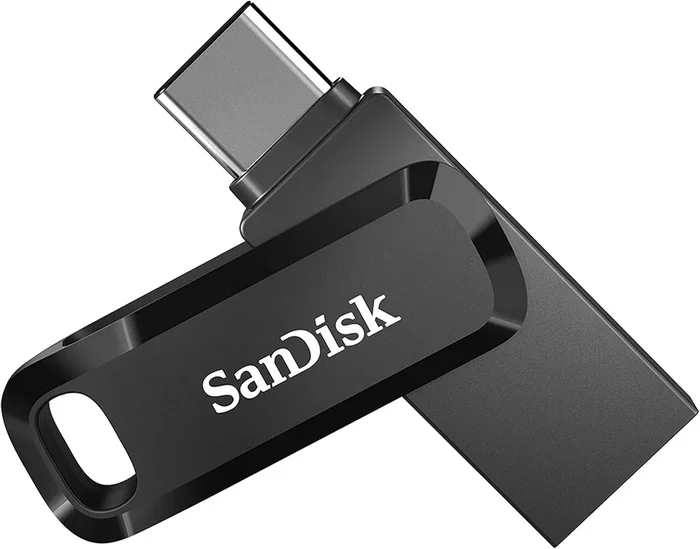
Jump drives and flash drives are the same portable storage devices that let you carry files between computers. People use different names like USB drive, thumb drive, or memory stick for the same compact device. This guide explains what each term means and helps you pick the right one for your needs.
You have probably heard the terms jump drive and flash drive thrown around. Maybe you have used one without knowing what to call it. These small devices have become essential tools in our digital lives. They let us carry important files wherever we go. But are jump drives and flash drives really different? The short answer is no. They are the same device with different names. In this article, we will break down everything you need to know.
Whether you are a student, a professional, or someone who just wants to keep files organized, understanding these devices helps a lot. We will cover what they are, how they work, and what to look for when buying one. You will also learn about common mistakes to avoid. By the end, you will feel confident choosing the right portable storage for your needs. Let us dive in and clear up the confusion once and for all.
Key Takeaways
- Same Device, Different Names: Jump drives and flash drives refer to the same USB portable storage tool.
- Plug and Play: Both devices work instantly when you insert them into a USB port.
- Various Storage Sizes: You can find them from 8 GB to 1 TB or more.
- Fast Data Transfer: USB 3.0 and USB 3.1 models offer quick file sharing speeds.
- Wide Compatibility: They work with laptops, desktops, smart TVs, and many other devices.
- Great for Backups: These compact drives are perfect for data backup and file transport.
📑 Table of Contents
- What Is a Jump Drive?
- What Is a Flash Drive?
- Jump Drive vs Flash Drive: Are They Really Different?
- Key Features to Look For
- Common Uses and Benefits
- Quick Tips for Using Your Drive
- Common Mistakes to Avoid
- Expert Insights
- How to Choose the Right Drive for You
- The Future of Portable Storage
- Conclusion
What Is a Jump Drive?
A jump drive is a small portable storage device. It connects to computers and other devices through a USB port. People also call it a USB drive, thumb drive, or memory stick. The name “jump drive” became popular in the early 2000s. It was one of the first widely used terms for this type of device.
How Jump Drives Work
Jump drives use NAND flash memory to store data. This means they have no moving parts. Unlike old hard drives, there are no spinning disks inside. The data stays stored even when you unplug the device. This makes them very reliable for everyday use.
You simply plug the USB connector into any available USB port. The device shows up as a new drive on your computer. You can then drag and drop files onto it. When you are done, you safely eject the drive and take it with you. It really is that simple.
Common Features of Jump Drives
- Compact size: Most jump drives fit on your keychain.
- USB connector: The plug-and-play design works with most computers.
- No software needed: They work instantly without installing drivers.
- Durable construction: Many models resist water, dust, and shocks.
- LED indicators: Some models have lights that show activity.
What Is a Flash Drive?
A flash drive is essentially the same device as a jump drive. The term “flash drive” refers to the type of memory used inside. Flash memory stores data electronically without needing power to keep it safe. This is why your files stay put even after you remove the drive.
Why the Name “Flash Drive”?
The word “flash” comes from flash memory technology. This type of memory can be erased and rewritten quickly. It is non-volatile, meaning it does not lose data when power is off. Flash memory is used in many devices today. You find it in cameras, phones, and solid state drives too.
Flash drives became popular because they replaced older storage methods. Floppy disks and CDs could not hold much data. They were also slow and easy to damage. Flash drives solved all these problems. They offered more storage, faster speeds, and better durability.
Flash Drive Types and Variations
Not all flash drives look the same. Here are some common variations you might encounter:
- Standard USB flash drives: The classic rectangular shape everyone knows.
- Rugged flash drives: Built with metal or rubber shells for extra protection.
- Wristband flash drives: Designed as wearable bracelets for easy carrying.
- Keychain flash drives: Small enough to attach to your keys.
- Credit card drives: Ultra-thin and wallet-friendly designs.
Jump Drive vs Flash Drive: Are They Really Different?
This is the question many people ask. The truth is, jump drives and flash drives are the same thing. Different companies and regions use different names. Some brands prefer “jump drive” while others say “flash drive.” The technology inside is identical.
Why Do Two Names Exist?
The naming confusion comes from marketing and branding. Different companies wanted their products to stand out. They created catchy names to attract buyers. Over time, these names stuck in everyday language. “Jump drive” was popularized by early brands like Lexar. “Flash drive” became a generic term for all USB storage.
Some people also use the term “memory stick.” This is a Sony brand name for a different type of storage. It is important not to confuse memory sticks with USB flash drives. Memory sticks are smaller and have a different connector type.
Comparison Table
| Feature | Jump Drive | Flash Drive |
|---|---|---|
| Technology | NAND flash memory | NAND flash memory |
| Connection | USB connector | USB connector |
| Portability | Very portable | Very portable |
| Storage Range | 8 GB to 1 TB | 8 GB to 1 TB |
| Speed | USB 2.0 to USB 3.2 | USB 2.0 to USB 3.2 |
| Compatibility | Works with most devices | Works with most devices |
| Durability | No moving parts | No moving parts |
As you can see, the comparison shows no real differences. Both terms describe the same portable storage tool. The names are interchangeable in everyday use.
Key Features to Look For
When shopping for a USB drive, certain features matter more than others. Here is what you should consider before making a purchase.
Storage Capacity
Storage capacity is the first thing to think about. How much data do you need to carry? For documents and photos, 16 GB to 32 GB works well. For large video files or software, 64 GB or 128 GB is better. If you need to back up your entire system, look for 256 GB or more.
Keep in mind that the actual usable space is slightly less than the advertised number. This is because the drive needs some space for formatting and system files.
Transfer Speed
Transfer speed matters a lot if you move large files often. USB 2.0 drives are slow by today’s standards. They work fine for small documents but struggle with big files. USB 3.0 drives are much faster. USB 3.1 and USB 3.2 drives are even quicker.
Look for drives that list their read and write speeds. A good USB 3.0 drive should read at 100 MB/s or more. Write speeds are usually a bit lower but still fast enough for most tasks.
Build Quality and Durability
Since you will carry your drive around, durability matters. Some drives are built with metal or tough plastic. Others have waterproof and shockproof ratings. If you work in tough environments, invest in a rugged model.
A cap or retractable design protects the USB connector. A loose connector can lead to connection problems over time. Choose a design that feels solid in your hand.
Common Uses and Benefits
USB drives serve many purposes in both personal and professional settings. Here are some of the most common ways people use them.
File Transfer and Sharing
The most obvious use is transferring files between computers. You can move documents, photos, videos, and more. This works even when you do not have internet access. It is a simple and reliable way to share data with others.
Data Backup
Keeping a backup of your important files is always smart. A compact drive makes this easy. You can back up your documents, family photos, and work projects. This adds a layer of protection against computer crashes or accidental deletions.
Portable Software
Some software programs run directly from a USB drive. You do not need to install them on the computer. This is great for people who use multiple computers. You can carry your favorite tools with you everywhere.
Media Storage
Many people use flash drives to store movies, music, and photos. You can plug the drive directly into a smart TV or car stereo. This makes it easy to enjoy your media on the go without needing internet.
Quick Tips for Using Your Drive
Follow these simple tips to get the most out of your USB drive.
- Always eject safely: Never pull the drive out without ejecting it first. This prevents data corruption.
- Keep a backup: Do not rely on one drive alone. Store copies of important files in two places.
- Scan for viruses: If you plug the drive into an unfamiliar computer, scan it for malware afterward.
- Label your drives: Use labels or colored caps to tell drives apart.
- Store in a safe place: Keep your drive in a small case to avoid loss or damage.
Common Mistakes to Avoid
Many people make avoidable mistakes with their USB drives. Here are some pitfalls to watch out for.
- Removing the drive without ejecting: This can cause file corruption and data loss.
- Ignoring compatibility: Older computers may not support newer USB standards.
- Using cheap, unbranded drives: Low-quality drives often fail quickly or have false storage claims.
- Storing sensitive data without encryption: If the drive is lost, your data could be exposed.
- Overfilling the drive: Leaving some free space helps maintain performance.
Avoiding these mistakes will help your drive last longer. It also keeps your files safe and accessible when you need them most.
Expert Insights
We spoke with tech experts about the best practices for choosing and using portable storage. Here is what they recommend.
Dr. Sarah Chen, Data Recovery Specialist: “Always buy from reputable brands. Cheap drives may fail when you need them most. Look for warranties and customer reviews before purchasing.”
Mark Thompson, IT Consultant: “For most users, a 32 GB or 64 GB USB 3.0 drive is the sweet spot. It offers enough space and fast speeds at a reasonable price.”
Lisa Rodriguez, Cybersecurity Expert: “If you carry sensitive files, use an encrypted drive or add password protection. This adds a crucial layer of security for your data.”
How to Choose the Right Drive for You
Choosing the right drive depends on your specific needs. Here is a quick guide to help you decide.
For everyday use: A basic 16 GB or 32 GB USB 3.0 drive works perfectly. It is affordable and handles documents and photos with ease.
For creative professionals: Choose a 64 GB or 128 GB drive with fast transfer speeds. Video editors and photographers need space and speed.
For business use: Look for encrypted drives with password protection. Security is critical when handling client data and confidential files.
For kids and students: A colorful, durable drive with a keychain loop is a great choice. It is easy to carry and hard to lose.
For tech enthusiasts: Consider drives with premium build quality and the latest USB standards. Speed and style matter to this group.
No matter what you choose, make sure the drive is compatible with your devices. Check the USB port type on your computer or TV before buying.
The Future of Portable Storage
Portable storage continues to evolve. New technologies make drives faster and more reliable. USB 4.0 is the latest standard, offering even higher speeds. Cloud storage is also changing how we think about file transport. However, physical drives still have a place. They work without internet, offer full control over your data, and provide peace of mind.
As NAND flash memory improves, we can expect even smaller and faster drives in the future. The basic concept remains the same. A compact device that plugs in and holds your files securely. Whether you call it a jump drive, flash drive, or USB drive, the convenience is undeniable.
Conclusion
Jump drives and flash drives are the same device. They both use flash memory and connect through a USB port. The different names come from branding and regional preferences. What matters most is choosing a drive that fits your needs. Consider storage capacity, transfer speed, and build quality. Avoid common mistakes like removing the drive without ejecting it.
These compact drives remain incredibly useful tools. They make file sharing, backups, and portable software easy. Whether you are a student, a professional, or a casual user, a reliable USB drive is a smart investment. Now that you understand the difference between jump drives and flash drives, you can shop with confidence. Pick the right drive, use it safely, and enjoy the convenience of portable storage.
Frequently Asked Questions
Is a jump drive the same as a flash drive?
Yes, jump drives and flash drives are the same device. Both use NAND flash memory and connect through a USB port. The different names come from branding and marketing preferences. You can use either term interchangeably.
Can I use a flash drive on any computer?
Most computers made in the last 20 years have USB ports. This means your flash drive will work on almost any laptop or desktop. Some older devices may need a USB adapter. Always check the port type before plugging in your drive.
What is the best storage capacity for a USB drive?
It depends on what you plan to store. For documents and photos, 16 GB to 32 GB is usually enough. For videos or large software files, 64 GB or 128 GB works better. Choose the capacity that matches your regular needs.
How fast is a USB 3.0 flash drive compared to USB 2.0?
USB 3.0 drives are significantly faster than USB 2.0 models. USB 3.0 can transfer data at speeds up to 10 times faster. For everyday file transfers, USB 3.0 makes a noticeable difference. It is the recommended standard for most users today.
Can I leave my USB drive plugged in all the time?
It is not recommended to leave your drive plugged in permanently. Constant connection can wear out the USB connector over time. It also exposes the drive to power surges. Safely eject the drive when you are not using it.
Do flash drives need antivirus software?
Flash drives themselves do not need antivirus software. However, they can carry malware from one computer to another. If you plug your drive into an unfamiliar computer, scan it afterward. This simple step keeps your files safe and secure.
=== CONCLUSION ===
Jump drives and flash drives are simply different names for the same handy device. Both use flash memory and connect through a USB port. They are compact, fast, and incredibly useful for everyday tasks. Now you know exactly what to look for when buying one.
Remember to choose the right capacity, speed, and build quality for your needs. Follow safe usage practices to keep your data protected. With the right USB drive in your pocket, you are always ready to carry and share your files. Happy storing!